
Update Integrity Data Install
The instructions below are to be completed AFTER the latest version of the Integrity Data Install has been updated with the correct installer. Download the latest version here: Download Software Solutions – Integrity Data (integrity-data.com)
Install the print driver
The Installer for this print driver can be found in the Employee Email Suite section of the GP Downloads page at Integrity-Data.com. This Print Driver is required to use the ID PDF Print Manager Adobe replacement.
.Net Framework 4.8 or higher is required to use and Install this Print Driver
Integrity ID PDF Print Manager Install
- Download the ID PDF Print Manager Installer from Integrity-com
- Run the Installer as Administrator
- Click Next

4. Accept the terms in the License Agreement and click next
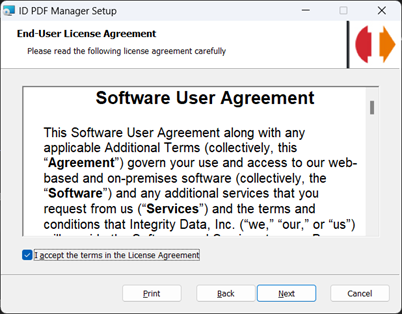
5. Click next

6. Click Install

7. Click Finish

Note: This will put a new Printer onto your device’s Printers and Scanners list named “ID PDF Manager” Do not remove this printer as this is what the system uses to create the PDFs for EES.
Review/Update Security Settings
Network User Security Settings
For the Email Earning Statement process to create, secure, and send the Earning Statements, the User will have to have system permissions to be able to read, write, and modify the folder that the Earning Statement PDFs are being created. (The location of this folder is set in the Employee Email Suite Setup window.)
Note: If you are using a RTS or Citrix style server to log into GP, then these permissions may also need to be added to the GP Runtime folder as well (C:\Program Files (x86)\Microsoft Dynamics\GP)
These steps may need to be set up by your system Admin or IT department.
To set these permissions you need to do the following:
- Navigate to the folder location using File Explorer
- Right Click on the folder and select Properties
- Click on the Security Tab of the Properties Window and Click Edit
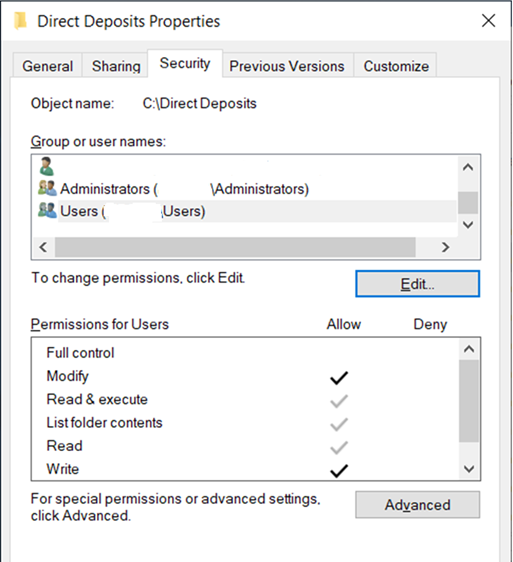
4. Select the Users Group or the group that contains the User that will be running the Email Suite process.
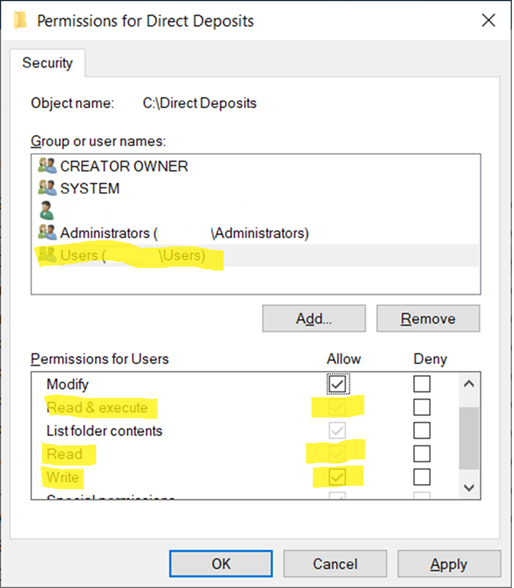
5. Check the Allow Check Boxes for the Read, Write, and Read & execute, Click Apply and OK.
This will set the necessary permissions to the folder for the Employee Email Suite Process to run to completion.
Select Print Driver on Email Suite Setup Window
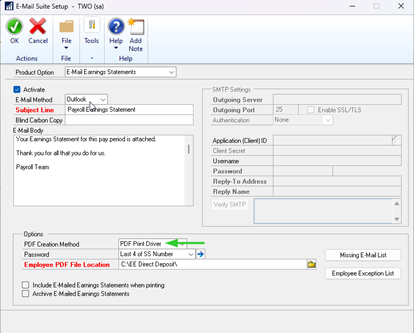
- PDF Creation Method – Decide what method will be used to create the PDFs to be
- PDF Print Driver – This will use the New ID PDF Manager print driver to create the PDFs without the use of Adobe.
- Note: The Print Driver must first be installed from the installer found at Integrity-Data.com before this option can be used.
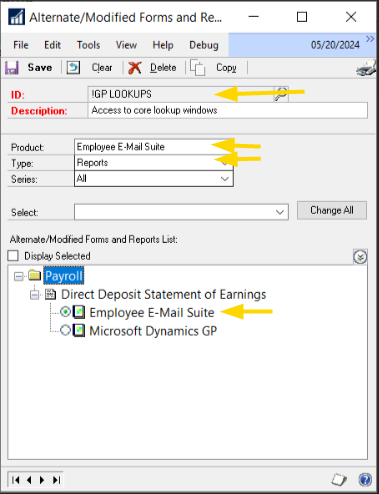
- When using the Print Driver method it will be necessary to use the Alterternate/Modified report for the Direct Deposit Statement of Earnings
- Navigate to Tools>Setup>System>Alternate/Modified Forms and Reports
- Select the correct Default ID
- Select Product = Employee Email Suite
- Select Type =Reports
- Select Series = All
- Click on the ‘+’ beside Payroll
- Select the ‘+’ beside Direct Deposit Statement of Earnings
- Select Employee Email Suite
- PDF Print Driver – This will use the New ID PDF Manager print driver to create the PDFs without the use of Adobe.
- Alternatively, if there is already an existing modified report it will need to be further updated in report writer to add the Legend 1 field to the bottom of the report. This field will provide the file location to where the reports are created.
Questions / Resources
If you have questions or comments please email support@integrity-data.com.
Last Review: 12/6/2024
Leave A Comment