
Navigate in Business Central to the Search button
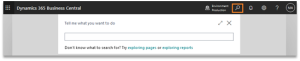
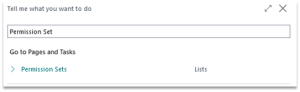
Search for Permission Set
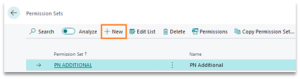
Create a New Permission set, with a name of PN Additional
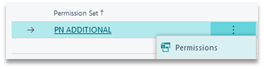
Once created, click the ellipse to the right of the permission set, and select Permissions
Down in the Permissions section, click on the Object ID cell, then click on the ellipse button
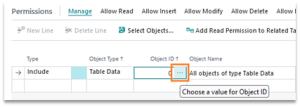
This will bring up a lookup screen, one by one, search for each of the tables below and select OK
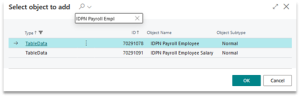
- IDPN Payroll Employee
- IDPN Payroll Code
- IDPN Payroll Ledger Entry
After selecting each table, the UI should have all tables listed
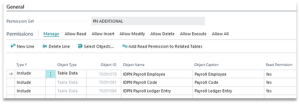
You may close the Permission Set window
Open the search again, and search for Microsoft Entra
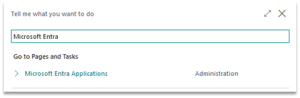
Once inside the Microsoft Entra window, select the HR Next Connection (the name will vary depending on setup)
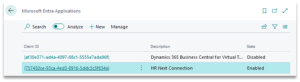
This will open a subsequent window, which will allow you to select the PN Additional Permission set we just created
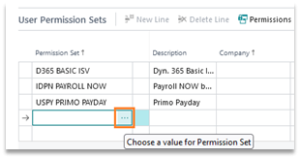
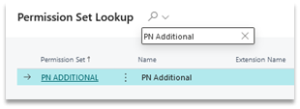
Click on a blank row’s ellipse, then search and select PN Additional
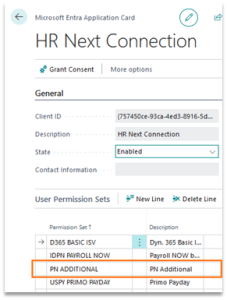
Once the Permission is displayed in the grid you may close the window, you are now set up!
Questions / Resources
If you have questions or comments please email support@integrity-data.com.
Last Review: 1/26/2024
Leave A Comment