

Click the Employee Tile and select Employee Summary from the drop down menu.

The Employee Summary window will open. Select the employee to open their record.

When the employee’s record opens, scroll to the bottom.

Drag and Drop or Browse to your photo and select it to upload to the employee’s record. You can use JPG, PNG, or GIF images.

When the photo has been uploaded, you will see that it listed under Temporarily Uploaded Documents. Click on Save Changes.

Click on the Integrity Data logo to go back to your HR Dashboard. You should still be locked into your employee, but if not, lock into your employee again. Click on the Employee Tile and select Employee Summary again.

Click on the employee record to open it again.

You should now see the picture that you uploaded to the employee file.
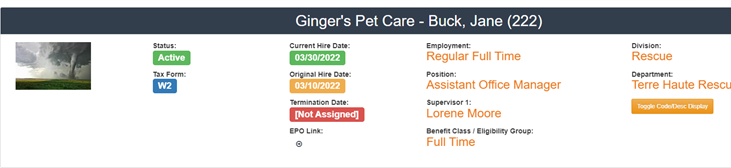
Congratulations! You have now successfully learned to add a picture to an employee record.
Questions / Resources
If you have questions or comments please email support@integrity-data.com.
Or you can start a support ticket here: https://www.integrity-data.com/support/
Last Review: 07/20/2023

Proven HR and Payroll Solutions
Built for Your People, Backed by Ours
Save time and improve the employee experience with a complete HRP solution. Built inside of Microsoft Dynamics and backed by our experts, our solution helps you attract, engage, and retain your most valuable asset – your people.
Leave A Comment