
Overview
Steps for an HR Administrator to assign a supervisor to an employee in Integrity Data’s HRP system. These steps must be completed by a user with HR Admin or equivalent permissions.
Option One
- Log into HRP as an Administrator
-
- Sign into your Integrity Data HRP system with an account that has access to edit employee records.
- Go to “Position Organization” menu found under “HR Admin > Employee Maintenance > Position Organization.”
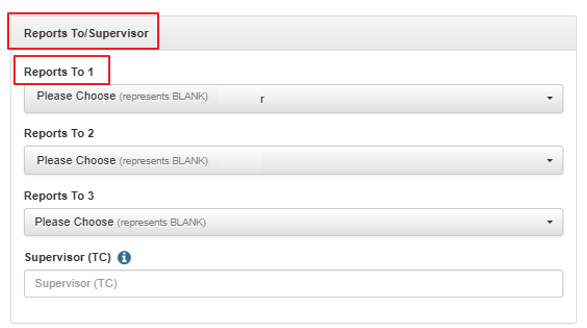
- Scroll down to Reports To/Supervisor section
- Assign the Supervisor
-
- Reports To 1 field:
- Begin typing the supervisor’s name
- Select the supervisor from the dropdown list
- Save the Changes
-
- Click Save to apply the update.
Option Two
- Log into HRP as an Administrator
-
- Sign into your Integrity Data HRP system with an account that has access to edit employee records.
- Navigate to the Employee Record
-
- Go to HR Admin → Employee Summary
- Search for and open the employee who is not visible to the supervisor.
- Edit the Employee Profile
-
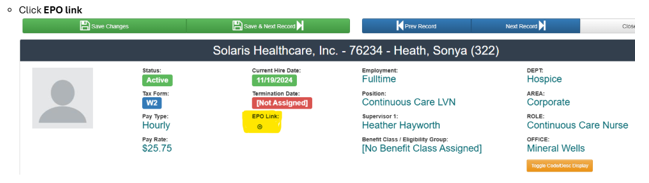
- Click EPO link
- Locate the Supervisor / Reporting Fields
-
- Scroll to the section that contains the Reports To and/or Reports To 2 fields.
- Assign the Supervisor
-
- Reports To 1 field:
- Begin typing the supervisor’s name
- Select the supervisor from the dropdown list
- Ensure the correct supervisor is selected (not typed manually).
- Save the Changes
-
- Click Save to apply the update.
Leave A Comment