
This article covers downloading the employee mobile app to enable clocking in, clocking out, submitting PTO Requests, and reviewing Time Off Balances.
- Go to Google Play Store or Apple App Store on your phone
- Download Primenet Employee Mobile
- Allow all permissions
- Allow location access

- Enter URL: https://time.idhrp.com
- Enter Company Code
- Enter Employee ID
- Enter PIN

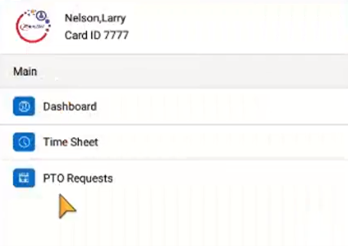
Selectable Menu to access Dashboard, Time Sheet and PTO Requests
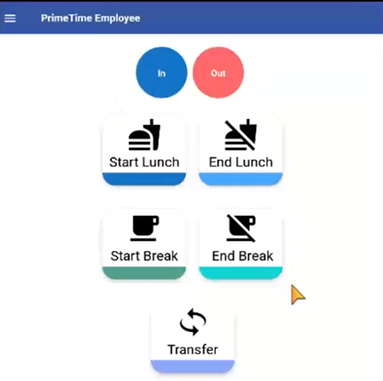
Dashboard View provides quick access to clocking in and out, starting lunch, ending lunch, starting a break, ending a break or transfer.
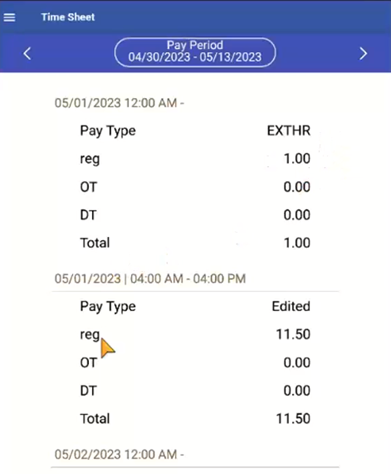
Time Sheet View will show the Pay Period and the view of the Pay Type and associated hours.
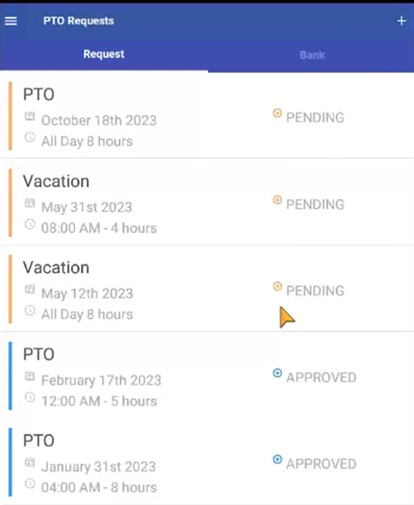
PTO Request View will show the status, of Approved, Pending, or Rejected.
Edit PTO Requests by clicking the Green Edit Option to the left of the PTO Request.
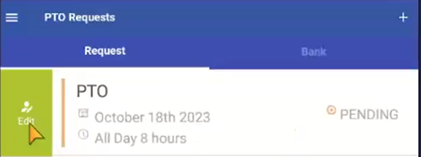
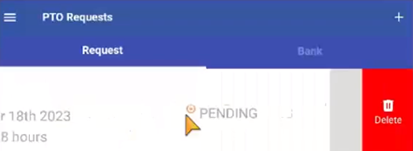
PTO Requests can be deleted by clicking the Red Delete Option to the right of the PTO Request.
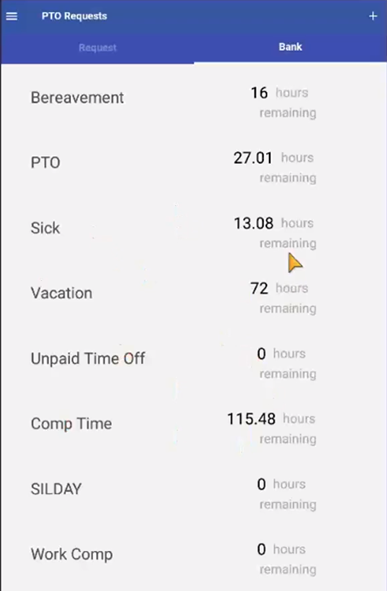
The PTO Requests Menu will show how many hours remail available in each type of PTO.
To submit a new PTO Request
- Click the “+” at the top left
- Generate Request
- Confirm Request

Questions / Resources
If you have questions or comments please email support@integrity-data.com.
Last Review: 9/17/2024
Leave A Comment