
If you are using Adobe to create PDFs for your employee earnings statements, there are a few Adobe settings that can be adjusted to enable a better user experience when using Employee Email Suite.
How to Prevent Popups
There are 2 adobe products that have settings that need to be set to prevent pop ups.
The first is Acrobat.
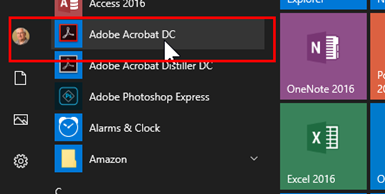
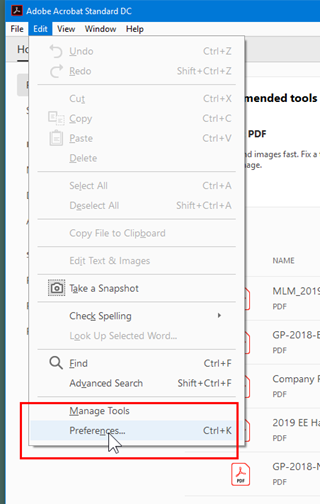
Navigate File > Edit> Preferences
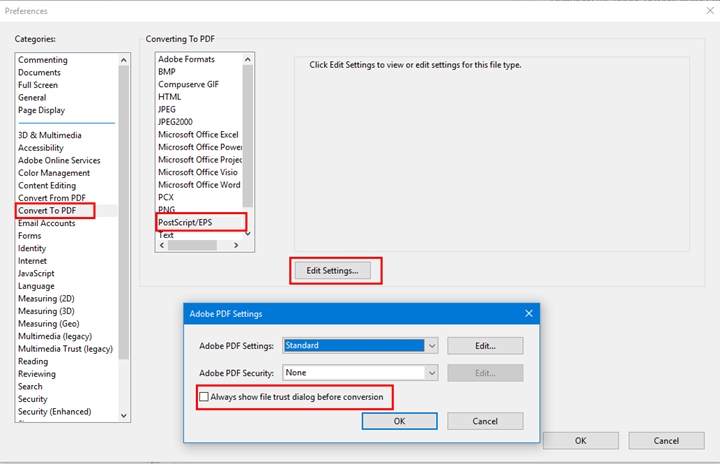
Select
Category = Convert To PDF
Converting To = PDF Postscript/EPS
Click on Edit Settings.
Make sure that Always show file trust dialog before conversion is unchecked.
The second product is Acrobat Distiller.
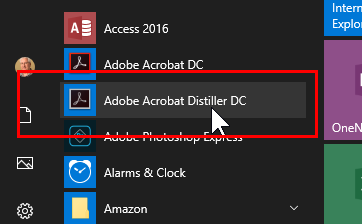
Navigate to File > Preferences
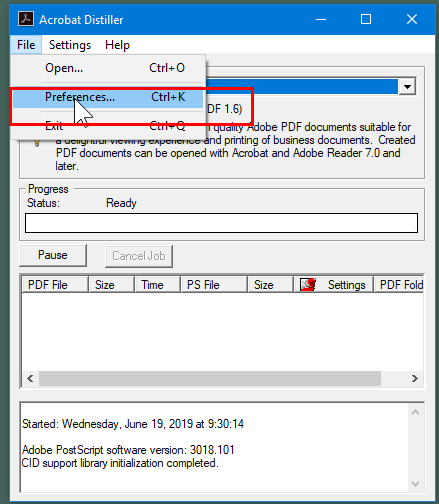
Make sure Trust all files opened via Acrobat Distiller is checked.
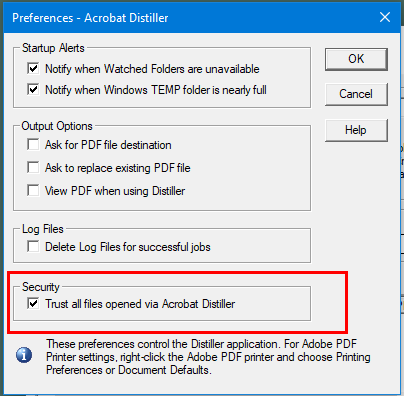
You will need to restart the computer to make sure the settings are in force.
How do I prevent a PostScript error message?
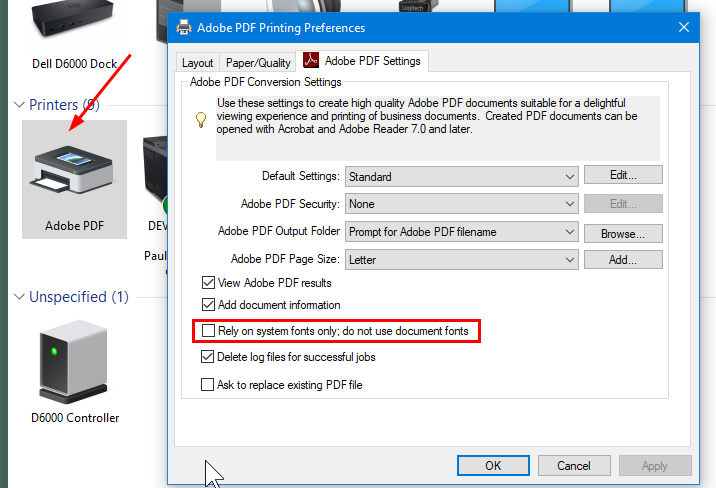
How do I prevent this error message? “When you create a PostScript file you must rely on system fonts and use document fonts. Please go to the printer properties, “Adobe PDF Settings” page and turn OFF the option “Rely on system fonts only; do not use document fonts.”
Unmark the “Rely on system fonts only; do not use document fonts” option:
- Click the Start button
- Click Control Panel
- Click Printers and faxes
- Right click on the Adobe Printer
- Select Printing Preferences
- Unmark “Rely on system fonts only; do not use document fonts”
- Select Apply
- Close the Adobe PDF Printing Preferences window
How to fix the appearance of boxes and question marks on my PDF report
- Click on START,DEVICES & PRINTERS, ADOBE PRINTER, PRINTER, PROPERTIES, PREFERENCES
- Then under the Adobe PDF Settings tab click on DEFAULT, HIGH QUALITY PRINT
Next, UN-CHECK “Rely on system fonts only, do not use document fonts.”
Click APPLY, OK
- Go back to Step 1 and Click on the PAPER/QUALITY tab, ADVANCED
Look for IMAGE COLOR MANAGEMENT, TRUE TYPE FONT:
Click on the “Substitute with device font.” A dropdown box will appear. Click on “DOWNLOAD AS SOFTFONT.”
- Next, under DOCUMENT OPTIONS, click on POSTSCRIPT OPTIONS, TRUETYPE FONT DOWNLOAD OPTIONS:
Click on “Automatic.” A dropdown box will appear. Click on “NATIVE TRUETYPE.”
Click OK to close the pop-up window. You may have to click on APPLY once you get back to the Paper/Quality tab, then click on OK to close that window. If Apply is available in the Adobe PDF Properties window, click it then click OK one more time to close the window and “X” out of everything else. Your new preferences should be saved and your document should print in Adobe just like it looks on your screen in the original program.
The steps above will change your Adobe Printer Default Settings to accept and print fonts native to the document you are trying to create, instead of using Adobe’s fonts to “re-create” the document leading to undesirable results.
Your Content Goes Here
Your Content Goes Here
Your Content Goes Here
Questions / Resources
If you have questions or comments please email support@integrity-data.com.
Last Review: --/--/2024
Leave A Comment