
Assigning Pay Grades
Pay grades are assigned at the position level, only one pay grade per position, so that the position establishes a compensation range. Everyone that is assigned to a certain position, it is implied that they are part of that position’s pay grade.
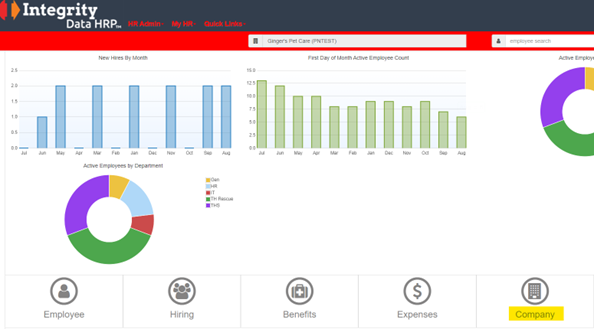
To assign a pay grade, go to your HR Administrator Home Screen and click on Company.
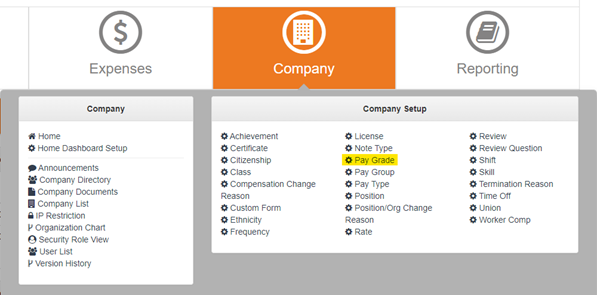
Click on the Company Tile and select Pay Grade from the Company Setup drop down menu.
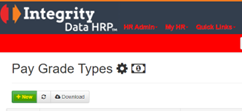
When the window opens, click on +New.
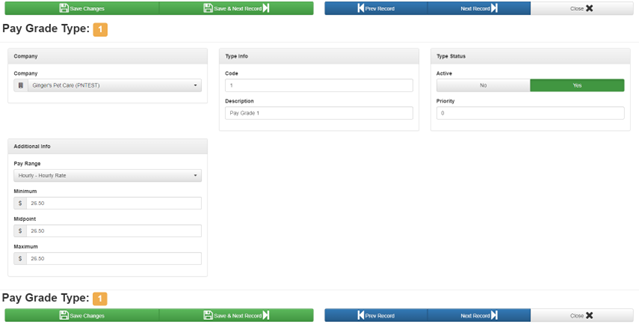
Complete the Additional Info, Type Info and Type Status, (priority is not needed) and save your changes.
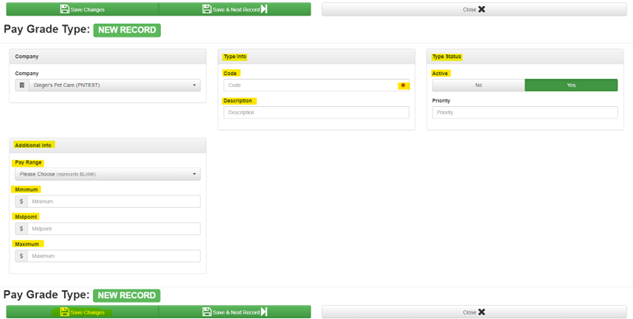
Example:
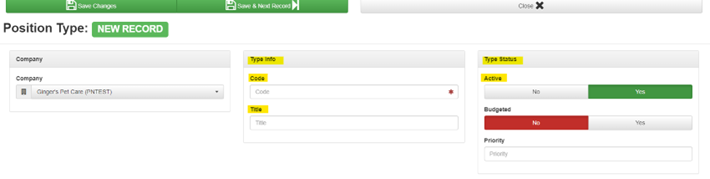
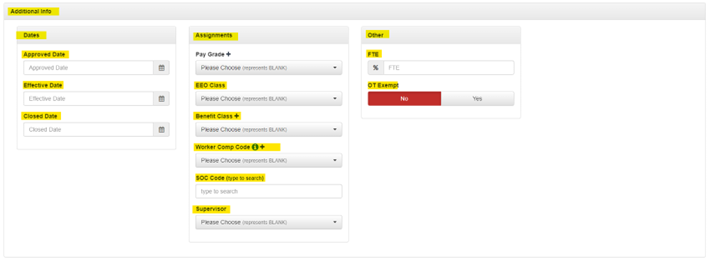
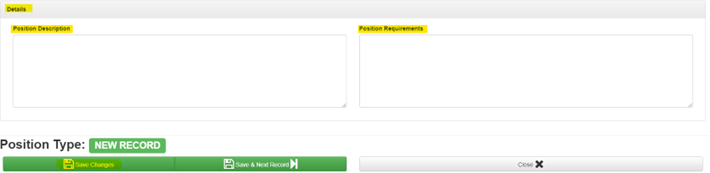
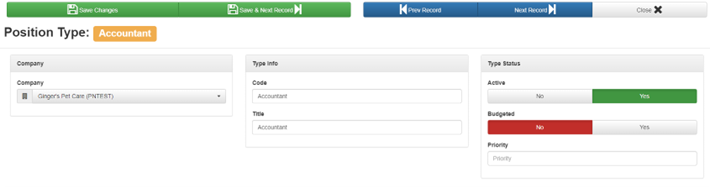
When you have completed all your pay grades, you can attach them to your positions. If you need to add a new position, you can add one from the Company Setup page by selecting Position, +New under Position Types and completing the fields below and then save changes. Fields are only required if they have a *other fields are optional. If your positions are already completed, you can skip down to page 4 to add the pay grade to your positions.

To add the pay grade to your positions, under Company Setup, click on Positions.
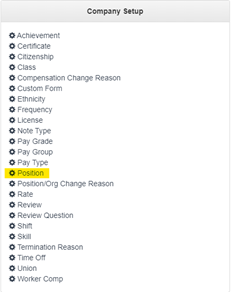
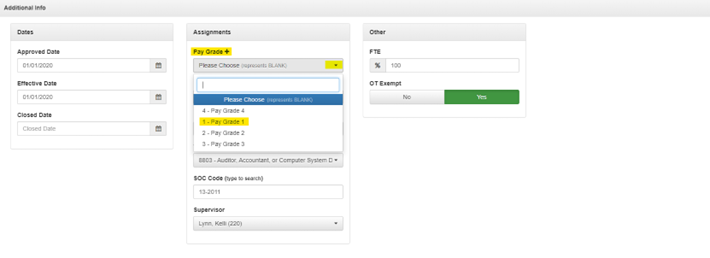
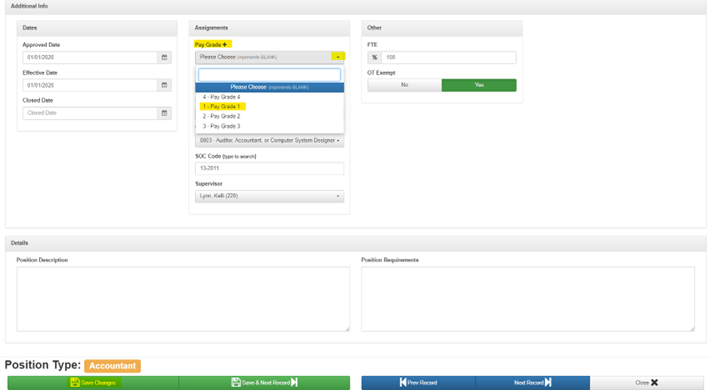
Click on the position that you want to add the pay grade to, to open it and select the pay grade from the dropdown menu that you want to associate this position with and then save changes.
Questions / Resources
If you have questions or comments please email support@integrity-data.com.
Last Review: 8/1/2023
Leave A Comment