
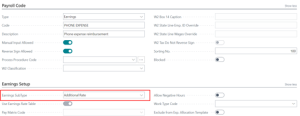
- Setup Earnings Code with Earnings SubType as “Additional Rate”. Setup>Payroll Codes
2. Create user Defined Field in Payroll Setup>Additional Setup>User Defined Decimal Field. This will be the field that the amount will be populated on the Employee Record to pull in each pay period.

3. Create Process Procedure Code (Setup Groups>Process Procedures>Process Procedure Codes).
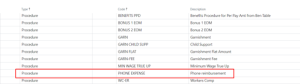
4. Create Process Procedure (Setup Groups>Process Procedures>Process Procedures). This is what tells the system where to find the amount to be paid each pay period.
Header:
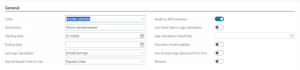
Lines:

The Table ID of 14141103 = Payroll Employee Table and Field ID of 166 = User Defined Decimal 4 (refer to step 2 to determine the User Defined Decimal field needed).
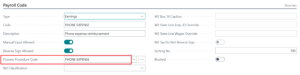
5. Return to Earnings Code and attach Process Procedure
6. Add Earnings Code to Setup>Earnings Rates with Rate Type Filter of “All Employees” and a Type of Hourly/Piece Rate Multiplier
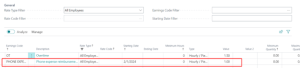
7. Add Earnings Code to applicable Payroll Calc Formulas (Setup>Payroll Calc Formulas)

8. Add to Posting Setup>Earnings for ALL Posting Groups

9. Add the recurring Amount to the User Defined Field on the Employee Record

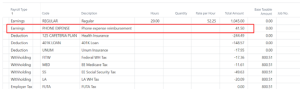
10. Test in payroll to verify calculation is correct and automatic.
Questions / Resources
If you have questions or comments please email support@integrity-data.com.
Last Review: 2/21/2024
Leave A Comment