
Exchange Services to retire Basic auth for Client Submission (SMTP AUTH)
For all of our customers who are currently using the Integrity Data Email Suite – please be reminded that basic authorization with Microsoft is being retired in September 2025. Google Gmail was retired in March 2025. This means that the existing configuration of your email suite will need to be reconfigured to support the delivery of the earnings statements and W2’s to ensure that these continue to get delivered to your employees.
Don’t panic – now is the time to add this to your To Do list so that there are no interruptions.
- Get in touch with your IT team and have them confirm the details so that the correct settings are updated in the Employee Email Suite.
- Contact your Dynamics GP Partner who can assist with these updates. The steps to follow are outlined in the section below so that you can easily make these changes.
- Be sure to use the Verify SMTP settings on the Email suite setup window to make sure that the connection is complete, then you are good to go
SMTP (Simple Mail Transfer Protocol) and OAuth (Open Authorization)
If Earnings Statements and W-2s are going to be delivered using SMTP configuration the required configuration will need to be completed on E-Mail Suite Setup.
Setting up OAuth may require your IT Provider to grant access and because applications you are authorizing can take some time to “roll down” that access, Integrity Data highly recommends that you set up your SMTP and click the Verify button well in advance of Emailing Earning Statements or W-2s.
This section outlines how to set up Open Authorization (OAuth) for Microsoft or Google apps within Employee E-Mail Suite. It does not include instructions to set up the apps being authorized; however, there are some links below that may help you with that.
IMPORTANT NOTE: Free Gmail and Microsoft accounts are ‘throttled down’ so if you are sending many emails, it might be necessary to get a paid account instead. For example, exceeding thirty emails per minute may cause the delivery of the emails to fail. The number that causes throttling is determined by the exchange service that is being used (usually Microsoft or Google).
Microsoft OAuth
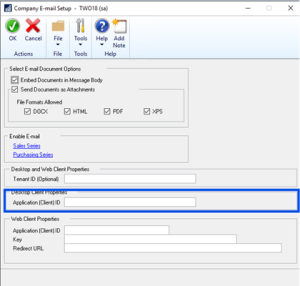
From the E-Mail Suite Setup window, select the E-Mail Method of SMTP. Choose Microsoft OAuth for the authentication method and click the blue arrow to the right of the Application (Client) ID field, to open the Company E-mail Setup window.
Tools>Setup>Payroll>E-Mail Suite Setup
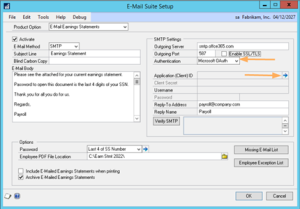
Enter the Client ID from the app you are authorizing and click OK.
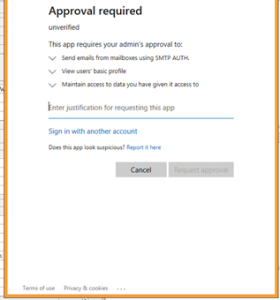
Depending on your setup, you may get a window requesting that you select an account and then see something like this:
Helpful info and links from Microsoft for setup:
- What is OAuth
What Is OAuth? | Microsoft Security
- This article Multi-Factor Authentication - Dynamics GP | Microsoft Docs has information to utilize Azure Active Directory App Registration for use in Microsoft Dynamics GP. Employee Email Suite (EES) also uses this setup. The last step - “Click on Overview on the left side pane. The Application (client) ID can be used in Microsoft Dynamics GP” - is what you need for EES as well.
- Basic Authentication to Modern Authentication https://community.dynamics.com/gp/b/dynamicsgp/posts/dynamics-gp-and-modern-authentication
- Dynamics GP Email Setup Guide
Dynamics GP Email Troubleshooting Guide - Dynamics GP | Microsoft Docs
- This is the link on limitations of email.
Exchange Online limits - Service Descriptions | Microsoft Docs - Exchange Online to retire basic auth for Client Submission
Google OAuth
In Gmail, setup an OAuth client and give it a name and select Deskstop app. Take note of the Client ID and Client Secret. Then go to Dynamics GP Setup>Company>Company email and update the fields with the Google OAuth Client ID and secret.
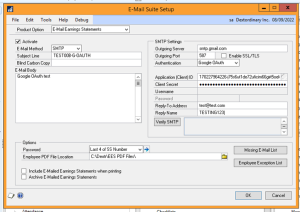
From the E-Mail Suite Setup window, select the E-Mail Method of SMTP. Enter the Server address or use the default smtp.google.com, enter the port and enable SSL/TLS. Choose Google OAuth for the authentication method and paste in your ID and Client Secret.
NOTE: Google offers services that you may need to purchase for effective email throughput. See documentation on those services for instructions to get a Client ID and Secret for your production environment.
Tools>Setup>Payroll>E-Mail Suite Setup
Helpful info and links from Google for setup:
Questions / Resources
If you have questions or comments please email support@integrity-data.com.
Last Review: 6/30/2025
Leave A Comment