
Access HRP Setup
In GP, navigate to Tools > Utilities > Payroll.
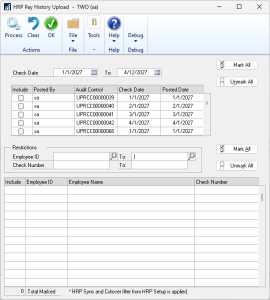
Now, let’s explore the details of each field on the HRP Pay History Upload page:
- Check Date:
- Specify the range of check dates to be included in the upload criteria.
- Include Audit Control Scrolling Window:
- Choose the audit control records that should be included.
- Employee ID:
- Select the Employee IDs to include in the upload.
- Check Number:
- Choose the check numbers to include in the upload.
- Include Employee/Check Number Scrolling Window:
- Select the records to be included in the upload.
- Process:
- The selected employee and check number records will be made available for employees to view in HR. Once the process begins, the Pay Summary Upload Manager will open. The user will have the ability to see the progress and pause this process if needed.
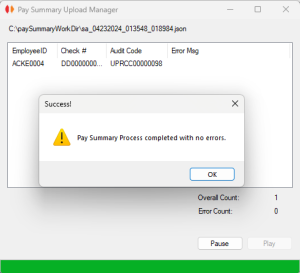
Warning: The upload process may take some time depending on the number of forms being processed, with an average of 3 seconds per check. For a company with approximately 1,000 employees paid weekly, there would be around 52,000 checks processed per year. Processing one year’s worth of checks would take approximately 43 hours. During this time the system must remain active to complete the processing
Questions / Resources
If you have questions or comments please email support@integrity-data.com.
Last Review: 04/24/2024
Leave A Comment