
Prerequisites
Before configuring MEM with Payroll NOW, the following must be in place:
- Binary Stream Multi-Entity Management (MEM) must be installed and licensed in your Dynamics 365 Business Central environment.
- Payroll NOW by Integrity Data must be installed and licensed.
- The custom extension PN_MEM_INTEGRATION from Integrity Data, Inc. (1.0.0.1) must be installed. This extension is required for payroll transactions to post to BC (GL) with the correct due-to and due-from intercompany lines.
Dimensions Setup
Dimensions are the foundation of MEM. You will create a dimension that represents your company entities, and then define dimension values for each entity.
Search for “Dimensions”
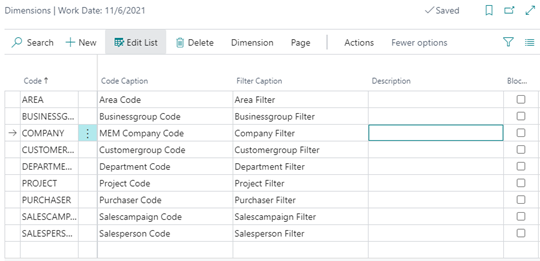
The dimensions listed in this window will be available to select from the Payroll Setup menu.
On the Dimensions window, click Dimension >> Dimension Values
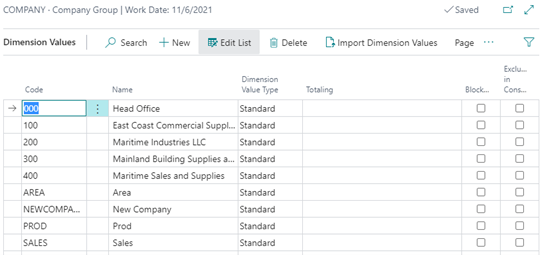
These dimension values will be assigned to the payroll companies and, in turn, assigned to the employee.
Important: In addition to creating dimension values here, the dimension values must also be added to the MEM Dimensions page in order to be recognized by MEM within Business Central. If dimension values are not added to MEM Dimensions, they will not be available for selection in payroll setup or on employee cards.
Payroll Setup
Full Payroll Menu >> Setup >> Payroll Setup
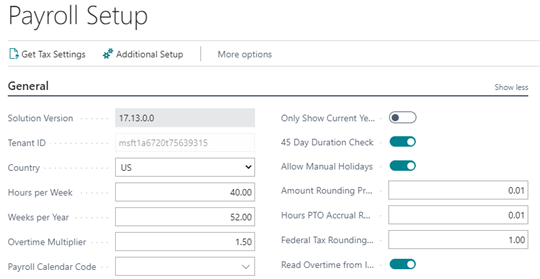
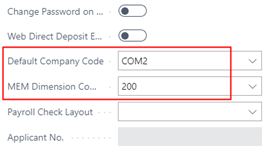
In order to use the MEM product with Payroll NOW, “Use Multi-Company” has to be enabled in the Advanced Settings section of Payroll Setup. Once this has been enabled, a Default Company Code (Payroll Company) has to be assigned.
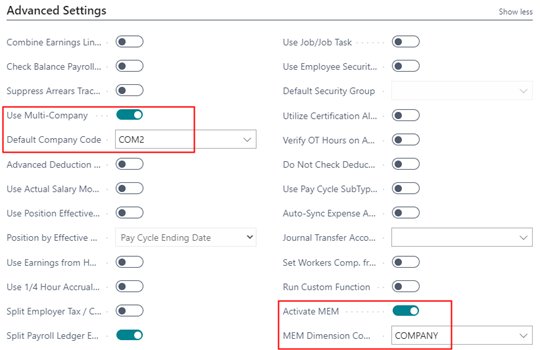
Once Multi-Company is enabled, MEM can be activated. Once activated, a MEM Dimension Code has to be assigned. The following message will appear:
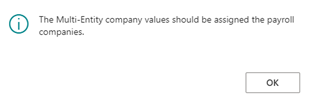
This is a reminder that payroll companies should have a corresponding MEM Dimension Company Code.
Payroll Company Setup
Each payroll company represents a legal entity or business unit that runs its own payroll. You will link each payroll company to a MEM company code.
Search for “Payroll Company Information List”
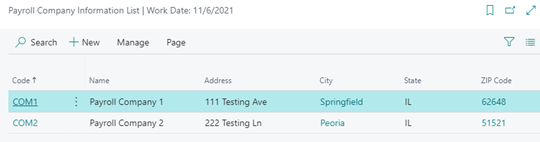
The companies listed here will be the Payroll Companies. Each of these payroll companies will be assigned a MEM Company Code, which are the dimension values from the Dimensions setup.
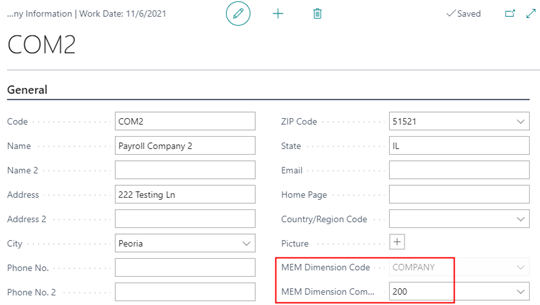
- The MEM Dimension Code can only be changed from the Payroll Setup window.
- The MEM Dimension Company Code will be rolled down to employees who are assigned to the corresponding Payroll Company.
- Each MEM Dimension Company Code is a unique combination with its Payroll Company. You cannot assign the same MEM value to more than one Payroll Company.
Payroll Employee
Full Payroll Menu >> Payroll Processing >> Payroll Employees
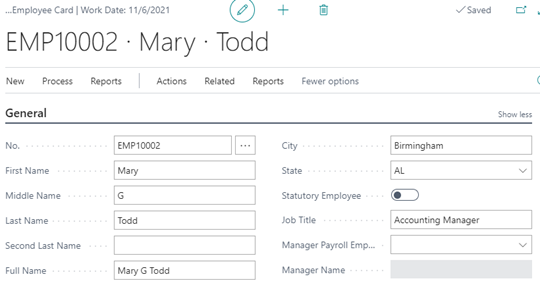
On the Payroll Employee Card, the MEM Dimension Company Code is displayed based on the employee’s assigned Payroll Company. The MEM value and Payroll Company Code are linked, and changes to one will affect the other:
- If you change the MEM Dimension Company Code on the employee card, the Payroll Company Code will automatically update to match the company associated with that MEM value. If no Payroll Company has been set up with that MEM value yet, the system will assign the dimension value to the employee’s current Company Code.
- The Company Code and MEM value are a unique combination on the Payroll Company List. You cannot have two companies with the same MEM value.
Hours Details
Full Payroll Menu >> Payroll Processing >> Hours Details
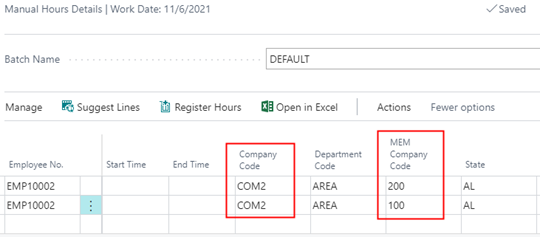
When creating hours for an employee, the Payroll Company Code and the MEM Company Code appear on the Hours Details window. The values default based on what is configured on the Employee Card.
To allocate hours to a different entity, select a different Payroll Company Code that has the MEM value you are looking for. MEM itself does not use Payroll Company Codes—it only recognizes the MEM Dimension Company Code. The Payroll Company Code is the mechanism within Payroll NOW to select the correct MEM value.
Expense Allocation
Employee Expense Allocation Template
From Employee Card, click on Related >> Employee >> Employee Expense Allocation Template
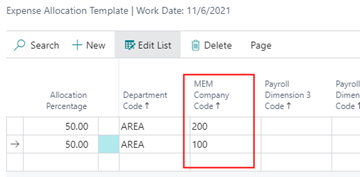
The MEM Company Code is able to be assigned to the Employee Expense Allocation Template.
Expense Allocation on Payroll Document
From Payroll Document, Lines >> Manage >> Payroll Expense Allocation
The MEM Company Code is brought into the Expense Allocation report based on the Payroll Company for the document.

Questions / Resources
If you have questions or comments please email support@integrity-data.com.
Last Review: 2/14/2025
Leave A Comment