
Bypass FFCRA 941 SS ER Calculations
The new update automatically sets ‘Bypass FFCRA 941 SS ER Calculations’ to True.
In Q2 2021, the FFCRA credit was changed from SS ER to Med ER, however the credit was moved from the top portion of the 941 to the bottom section to be taken as an adjustment, therefore the Med ER credit does not need to be reflected in the payroll ledger entries.

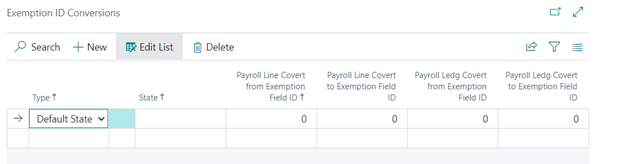
Exemption ID Conversions
When you select ‘Exemption ID Conversions Enabled’ in the Payroll Setup Table it will allow you to access the new ‘Exemption ID Conversions’ table. This feature allows you to change the exemption field number for designated states. This allows the user to have ‘exceptions’ for designated state exemptions when some states treat taxable wages differently than others (for example, the 410K treatment in PA).

Once Enabled, Additional Payroll Setup to access Exemption ID Conversions table.

Payroll Calculation Exclusion Enabled
This table allows you to setup certain types of taxes to be completely excluded (wages and withholding/employer tax) from the employees that have this exclusion code. For example, if you select exempt from social security the employees with this exclusion code will show no applicable wages or withholding in their payroll document or in the tax reports like W2, and 941.
Payroll Setup>US Setup
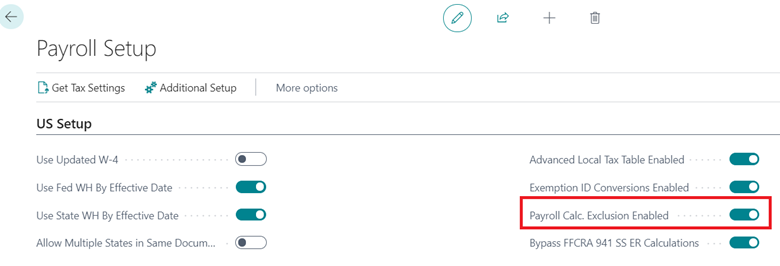
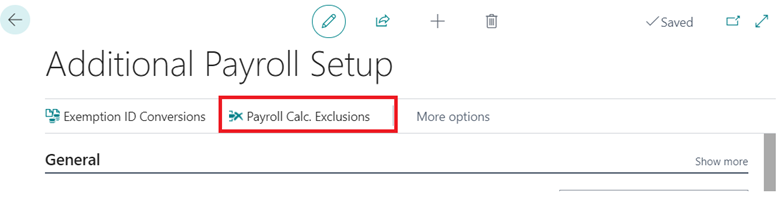
Once Enabled, Additional Payroll Setup to access Payroll Calc Exclusions table.
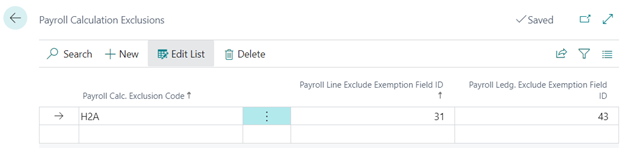
Create a Code to assign to the applicable employees and list each tax that they’re not subject to. There’s one for general, one for Employee, and one for Employer so you have 3 lines for each. Be careful to select ALL the FICA Soc Sec codes and FICA Medicare codes. The elipses will bring up the list of options, the tax has a different number for the open docs and ledger so that’s why there’s two columns.
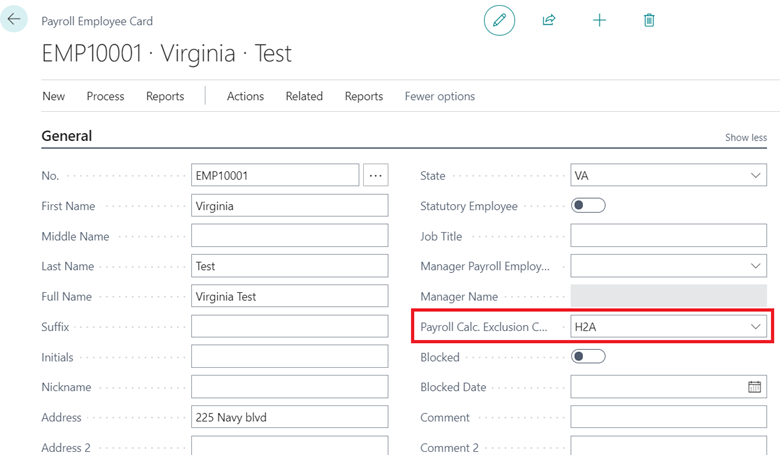
Once set up, you will then assign the code you created in your Payroll Calculation Exclusion table to the applicable employee(s). This feature adds a field to the employee card in the General section where you can put this code:
Local Tax Applicable Wage Override
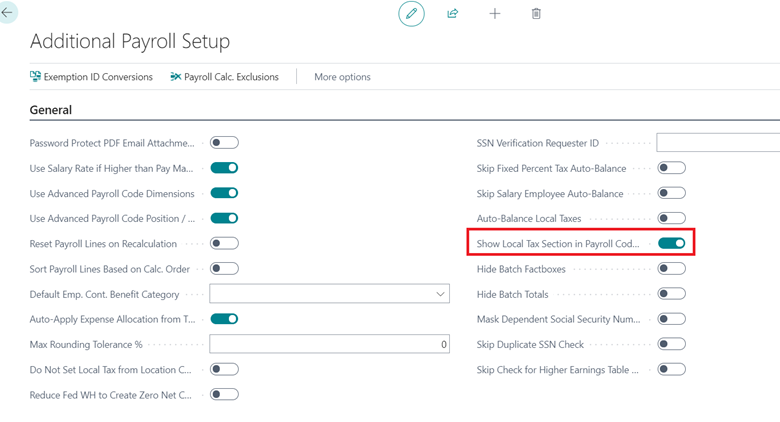
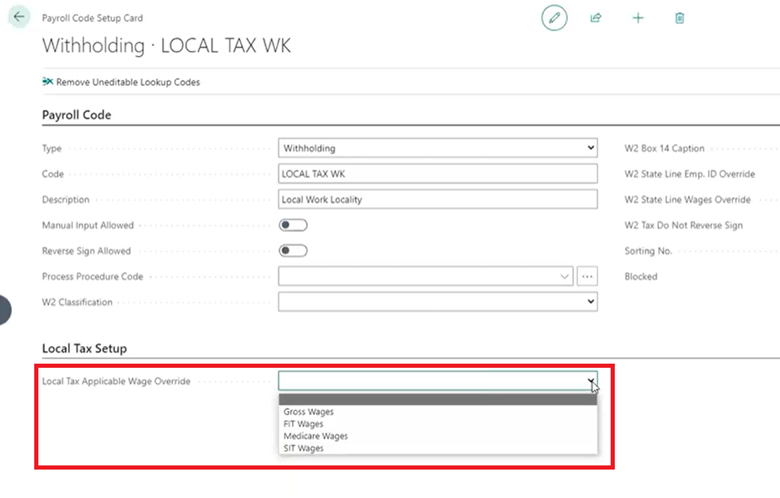
This feature allows you to determine what wages are applicable to the local tax at the local tax payroll withholding code level. Therefore, you can have different local tax withholding codes use different wage bases.
Payroll Setup>Additional Setup
Payroll Code
Covid Earnings Setting Update
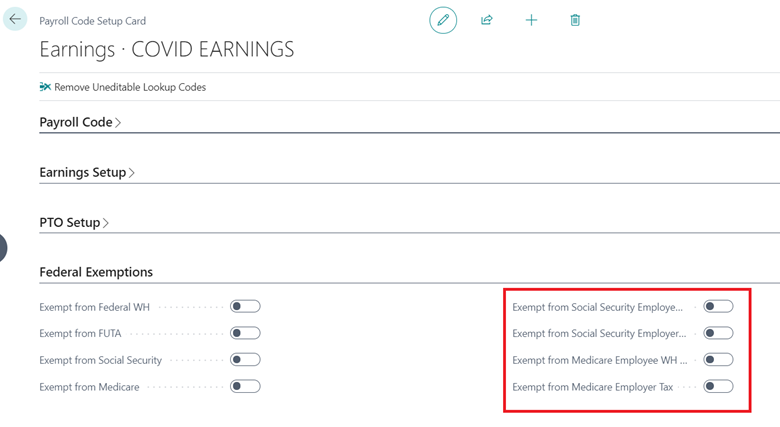
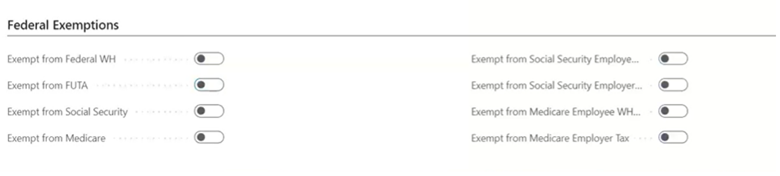
In Q2 2021 the IRS made changes to how Qualified Covid Earnings exemptions are calculated. Please make sure that Covid Earnings are no longer set to be exempt from SS EE, SS ER, MED EE or MED ER in the ‘Federal Exemptions’ tab of the Covid Earnings Payroll Code Setup Card. The credit should not be part of the payroll lines/ledger anymore as it is now taken towards the bottom of the 941 as an adjustment.
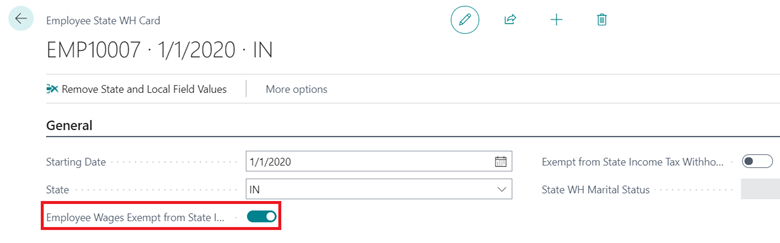
Employee Wages Exempt From State Income Tax
When set to true, it exempts any earnings in that state from showing the earnings as applicable to the state. This in turn will lead to ‘0’ earnings in that state and therefore 0 withholdings.
WARNING!! IF SET TO TRUE, THE W2 AND QUARTERLY REPORTS WILL SHOW NO EARNINGS APPLICABLE TO THIS STATE
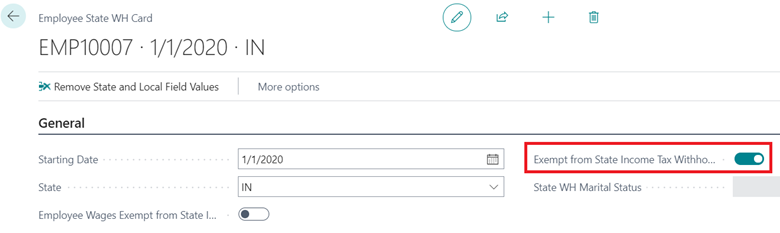
Exempt from State Income Tax Withholding
When set to true, there will not be any income tax withholding calculated for this state, however the earnings will show as applicable earnings in the state income tax reports and W2.
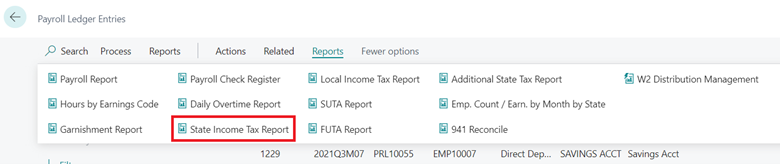
State Income Tax Report
The State Income Tax Report (Payroll Ledger Entries>Reports>State Income Tax Report) will show the wages that are going to show up on the W2. This gives users the ability to check employees and see if anyone has ‘0’ wages in a state where they should have wages.
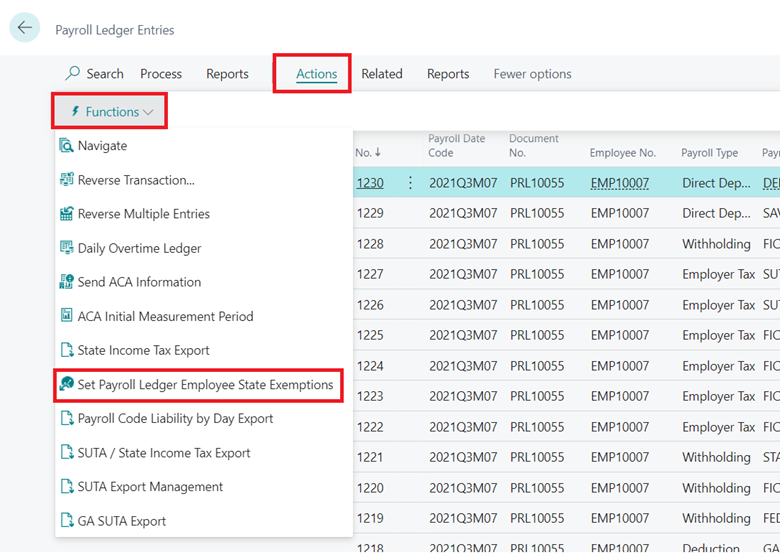
Set Payroll Ledger Employee State Exemptions
This feature allows you to change the exemption settings of employees from the Payroll Ledger Entries Table. If a user runs the State Income Tax Report and notices certain employees have the wrong state exemption settings, this report provides a quick fix to filter the employees and adjust their settings.
History>Payroll Ledger Entries>Actions>Functions.
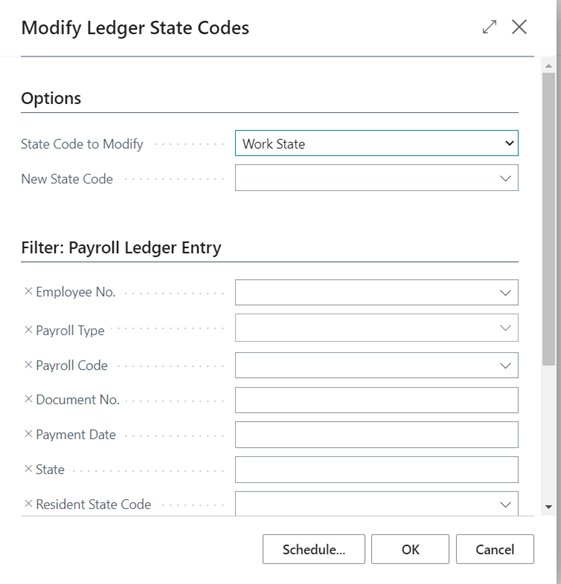
State Update Options
If you need to set an employee’s wages to be applicable state wages, filter on the employee number, the date range (most likely all of 2021), then set the ledger state exemption setting to No (and/or the resident state exemption setting to No) and run this report, it will reset the employee state exemption setting in the payroll ledger.
History>Payroll Ledger Entries>Actions>Functions
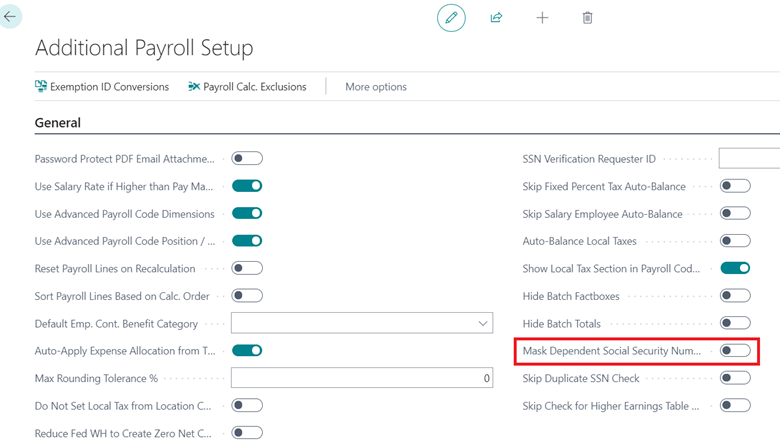
Mask Dependent Social Security Numbers
When set to true the dependents SS# will be masked
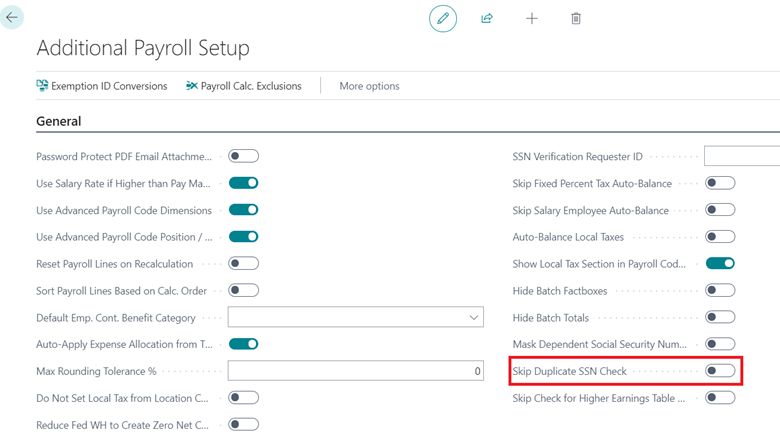
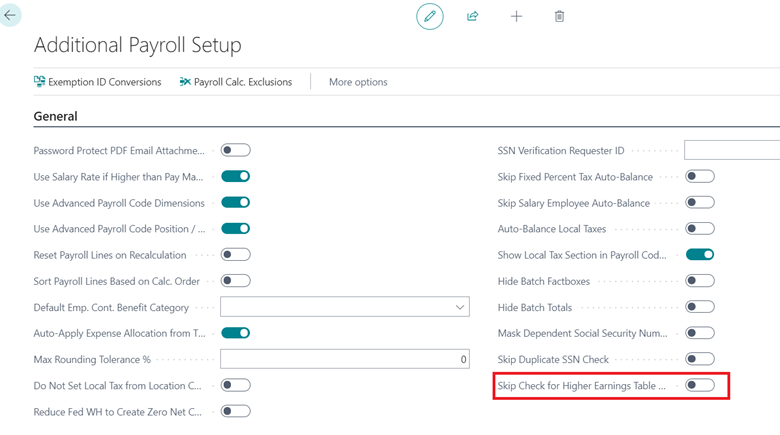
Payroll Setup>Additional Payroll Setup>General
Skip Duplicate SSN Check
When set to true, the payroll system will skip the duplicate SSN check. This speeds up the process of loading a new SSN but also increases the risk of loading a duplicate SSN.
Skip Check for Higher Earnings Table Rate
When set to true, if an earnings rate is found specific to a payroll employee number that rate will be used even if it is not higher than the employee’s salary rate. This will only work if the value type is fixed hourly / piece rate.
ACA Waiting Periods
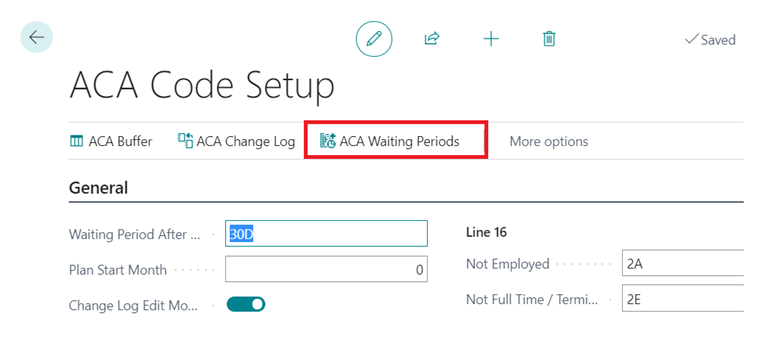
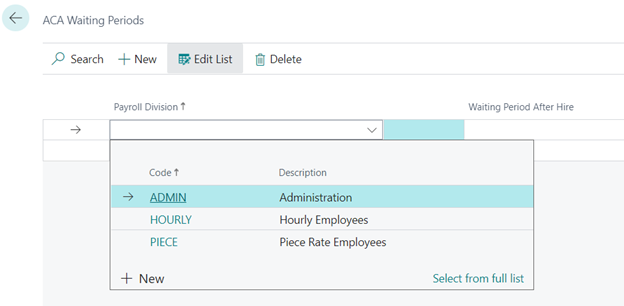
This feature allows the user to setup different ACA Waiting Periods by payroll division
The ‘Waiting Period After Hire’ in the ‘General’ Tab of the ACA Code Setup will be the default waiting period unless new waiting periods are setup in the ‘ACA Waiting Periods’ table.
Auto-populate Lines from Payroll Ledger
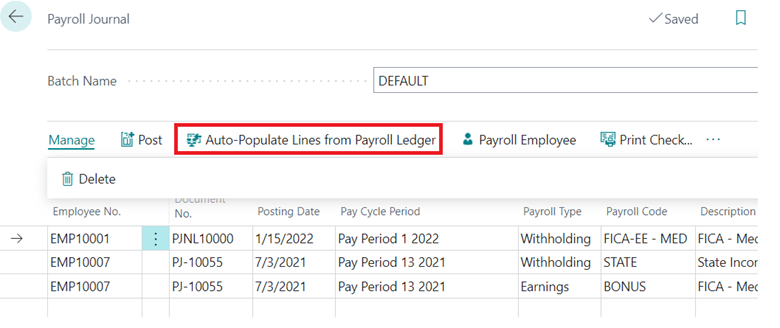
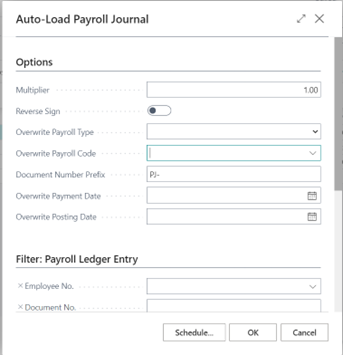
This report simplifies the process of loading payroll journals. The user can auto-load the payroll journal from the payroll ledger. You can load multiple entries at one, you can multiply the amount that’s found in the ledger by a particular number, you can reverse the sign etc.
Payroll Processing>Payroll Journal
Change Log Triggers
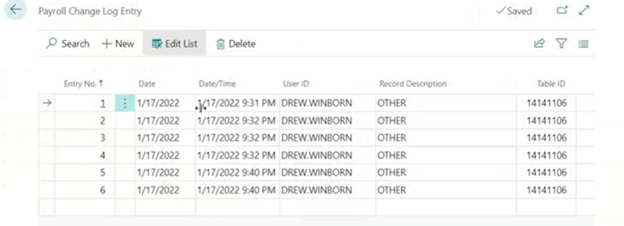
All exemption changes within the payroll code setup card will trigger a change log entry.
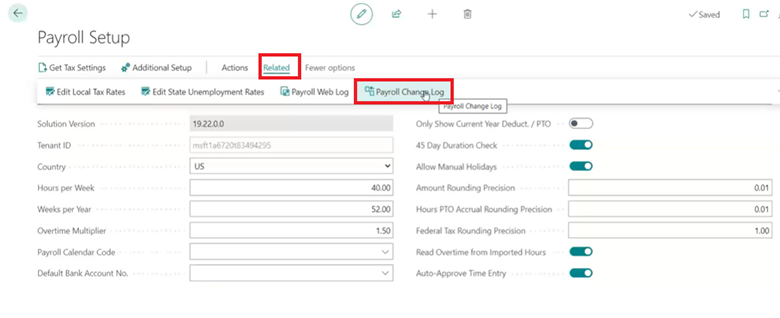
To Access the Payroll Change Log, Payroll Setup>Related>Payroll Change Log
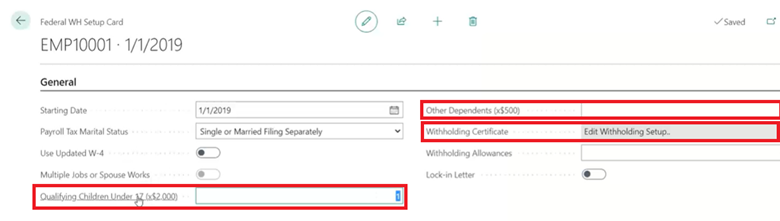
Federal Withholding Setup Card Data – Prints on W-4
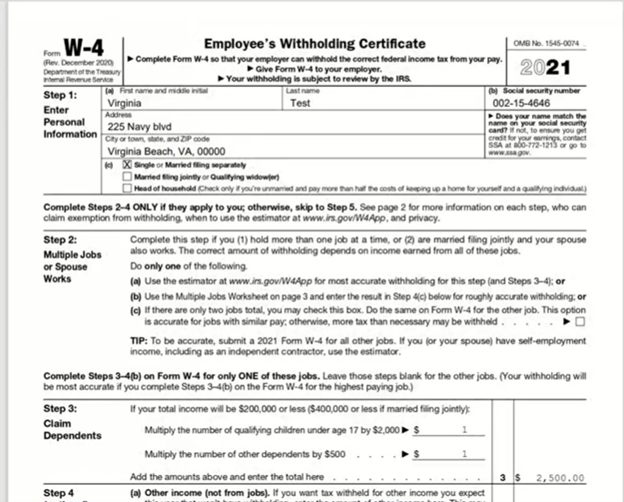
Within the Federal WH Setup Card, the data within fields ‘Qualifying Children Under 17’, ‘Other Dependents’ and the information in the ‘Withholding Certificate Setup’ table will print on the W4 and modify the withholding certificate lines.
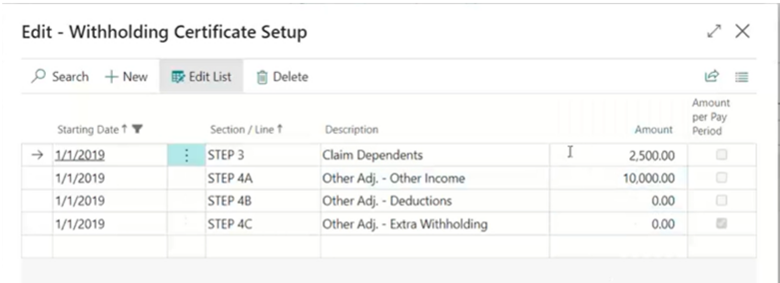
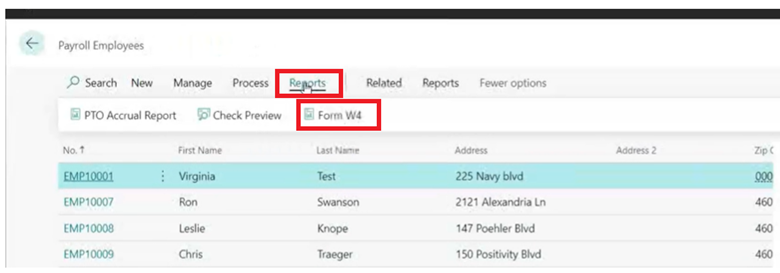
To print the W4 open the payroll employee list and select Reports > Form W4 > Print to PDF
Email Setup
In the ‘Email Setup’ Tab of the ‘Payroll Setup Table’, you must now enter a payroll ‘User ID’ to set the email address that should be from payroll so that Payroll NOW can find the right email settings when sending emails i.e.: Email Pay Stubs, etc.
Payroll Setup>Email Setup

To Add Email to SMTP Account, search for “Setup Email” and select “Next”.
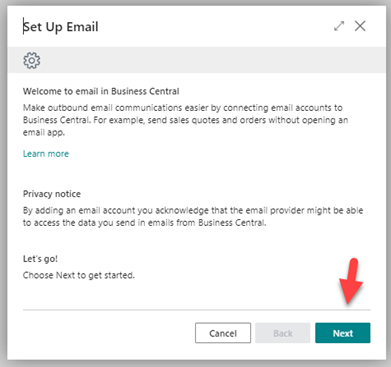
Highlight “SMTP Use SMTP to Send emails” and select ‘Next’.
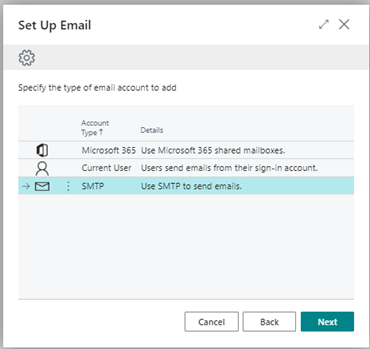
Next enter the email account that you want to send the payroll documents from.
Then select Apply Office 365 Server Settings.
Enter the password for the email, select ‘Next’.
You can then send a text email. Once this is received you are setup.
Questions / Resources
If you have questions or comments please email support@integrity-data.com.
Last Review: 10/17/2022
Leave A Comment