
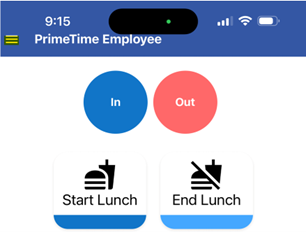
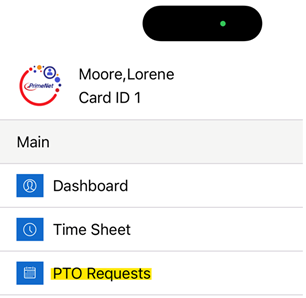
After Logging into the Employee App, you will see the sandwich, (3 lines) in the top left corner of the app, if you click on the sandwich, it will pull out a window that lists Dashboard, Time Sheet, and PTO Requests.
Click on PTO Requests

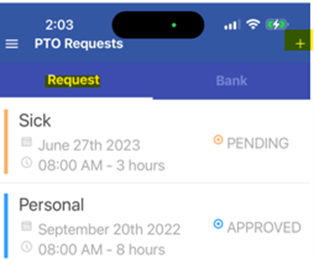
(By default, you will be on the Request tab) Click on the + sign at the upper right corner to add a request.
If you remove the check from All Day, it will allow you to set the start time, add the number of hours for the day, what bank of hours, (depending on your company policy) to take the time from, (it also shows how many hours you have left in each bank) and add a note.


When you have completed the information, click on Generate Request at the bottom. You will see the date, start time, hours to be deducted, your remaining balance of hours and the bank it is being deducted from. If it appears correct, click on Confirm Request at the bottom and your request will be submitted to your manager for approval.

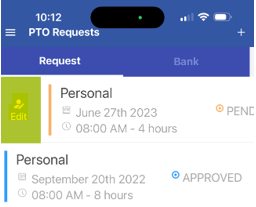
You will be able to see your Pending and Approved requests.
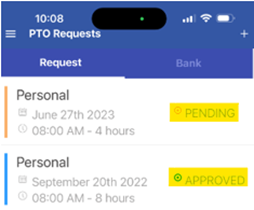
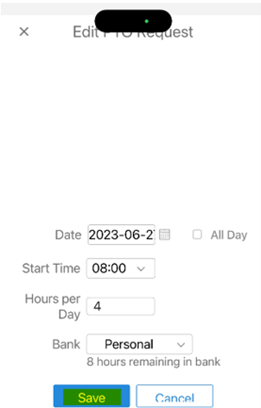
If you need to edit your request prior to approval, slide the request to the right and click on Edit.
Make your changes and click on Save.
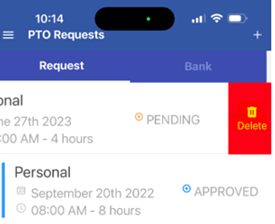
If you want to remove your request, slide the request to the left and click on delete.
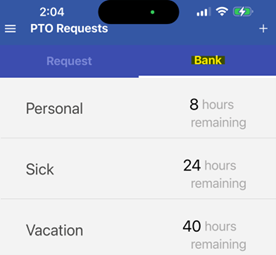
You can also review your available time by clicking on Banks.
Questions / Resources
If you have questions or comments please email support@integrity-data.com.
Last Review: 8/1/2023
Leave A Comment