
Fixed Amount Tax Setup
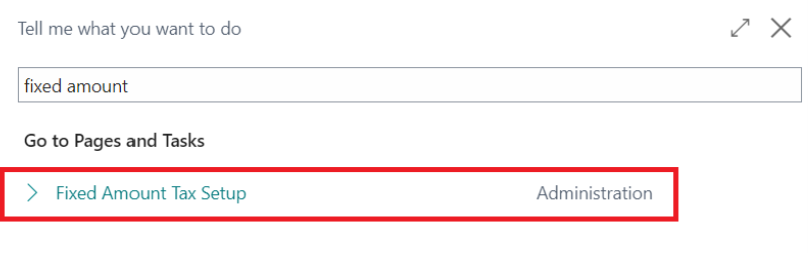
To access the ‘Fixed Amount Tax Setup’, you can either search ‘Fixed Amount Tax Setup’
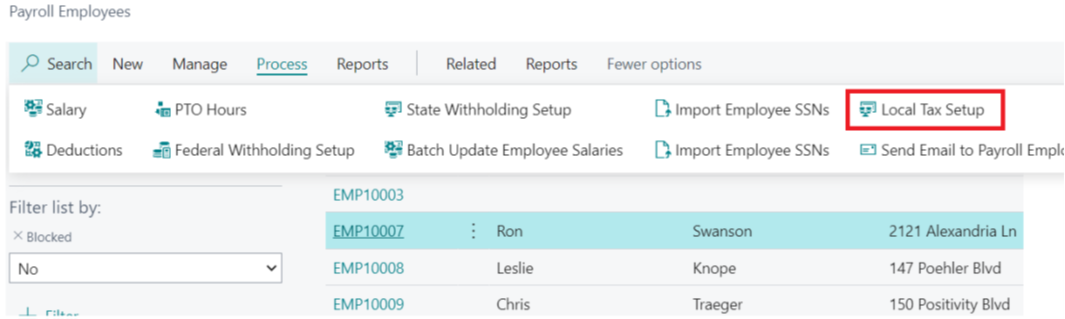
Or you can go to the employee card and click ‘Process’ > ‘Local Tax Setup’ > ‘Fixed Tax Setup’
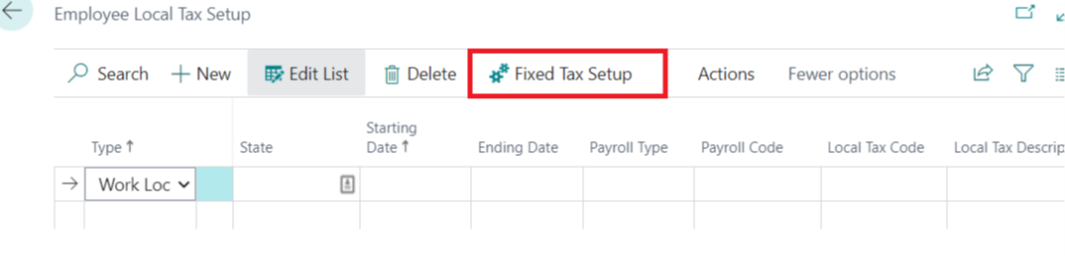

Within the ‘Fixed Amount Tax Setup’ you can select the ‘Payroll Type’ and the ‘Payroll Code’, then enter a ‘Starting Date’, select the ‘State’ and enter a tax ‘Ending Date’ if applicable. Then select the ‘Frequency’ and enter a tax amount.
Wage Minimum Type can be either Earnings or Hours.
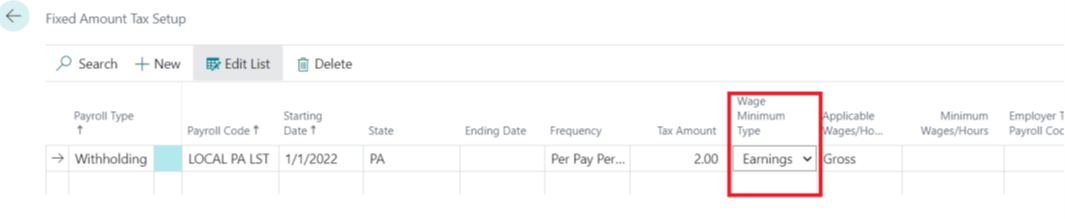
Applicable Wages / Hours can be either ‘Gross’ or ‘Applicable to Local’.
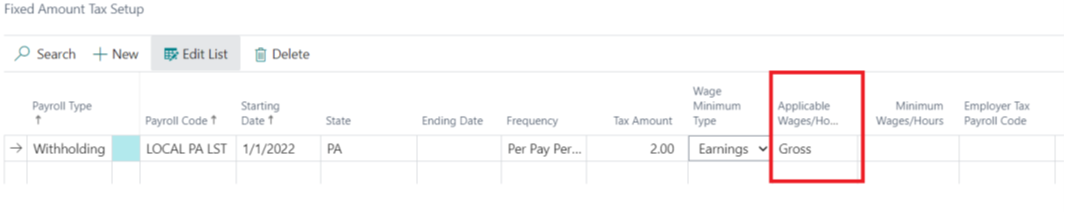
Minimum Wages / Hours allows the user to set a minimum hours or dollars amount that needs to be surpassed before the local tax withholding is triggered, if left blank then the tax is applied without checking for a minimum wage or hours.

Employer Taxes can also be added via the ‘Employer Tax Payroll Code’ and the ‘Employer Tax Amount’ Fields. Most fixed amount taxes do not have an employer side, however a few do (Colorado locals, etc).

The ‘Annual Total Tax Withholding Amount’ allows the user to set a limit for the maximum withholding allowed with the tax setup. In the example below, the local tax withholding would cease after $52 has been withheld from the employee.

Once you have set the ‘Fixed Amount Tax Setup’ you can proceed to the ‘Employee Local Tax Setup’ to apply the Local Tax Payroll Code.
Within the ‘Employee Local Tax Setup’ you can set the ‘Type’, the ‘State’ the ‘Starting Date’ (Ending Date if applicable) the ‘Payroll Code Type’ and the ‘Payroll Code’.
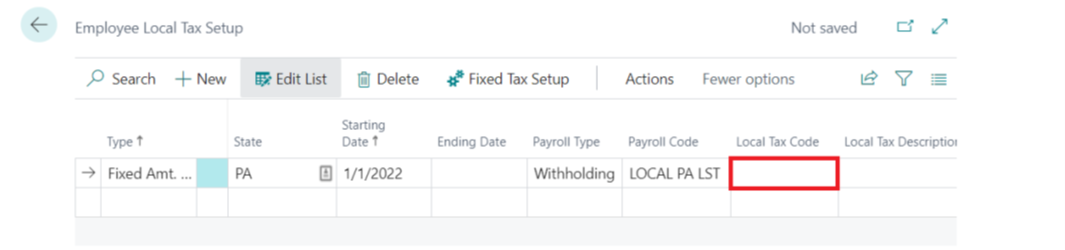
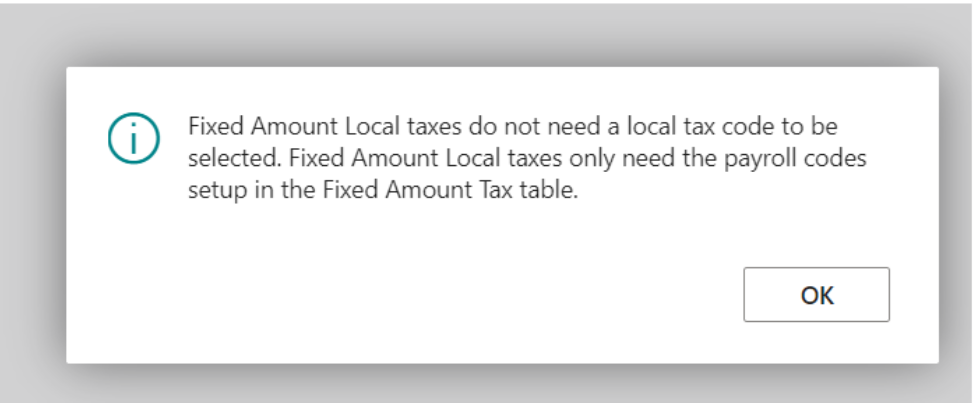
However, if you try to select the ‘Local Tax Code’ field you will get the following message:
Your Content Goes Here
Your Content Goes Here
Questions / Resources
If you have questions or comments please email support@integrity-data.com.
Last Review: --/--/2022
Leave A Comment