
Deduction Code Warning – Starting and Ending Date
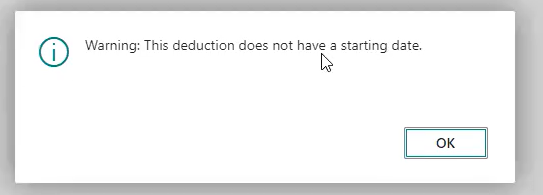
When a user tries to setup a new deduction without a ‘Starting Date’, the system will notify the user that they are attempting to setup a deduction without a starting date when the user backs out of the deduction setup.
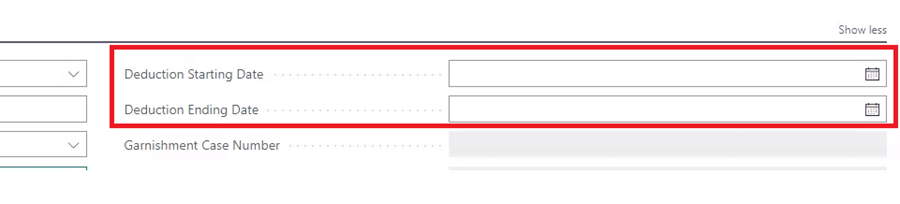
New starting and ending date captions in deduction card
The captions in the deduction card now read ‘Deduction Starting Date’ and ‘Deduction Ending Date’. Also, those captions are now visible to the user when the deduction card is opened. You no longer need to click ‘show more’ to access these fields.
New HR Fields Section in Deduction Card
There is now an HR section at the bottom of the deduction card with ‘Coverage Starting Date’ and ‘Coverage Ending Date’ fields.

Error Message to Prevent Using Regular Earnings Subtype When Pulling Earnings from Hours Details Table
The ability to use the Regular earnings subtype with earnings coming from hours details will no longer be allowed.
Error message is triggered if using ‘regular’ subtype on payroll earnings codes if using earnings from hours details.
“You cannot set subtype to REGULAR while using Earnings from Hours Details
Disable Negative PTO Warning
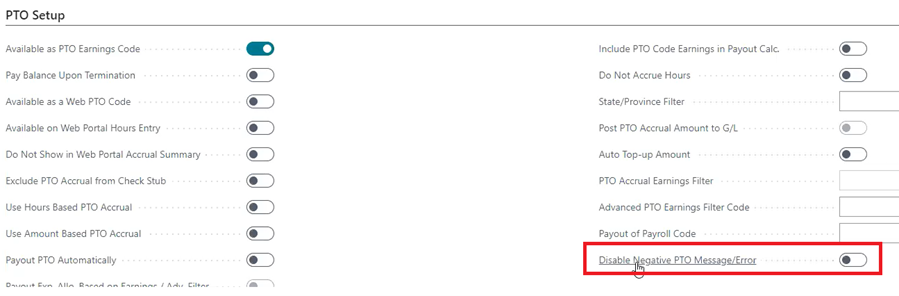
There is now a checkbox on the pto card to turn off the warning ‘you are about to go negative on PTO hours’. This button can be activated in the Payroll Setup Table > PTO Setup Tab
Payout of Payroll Code
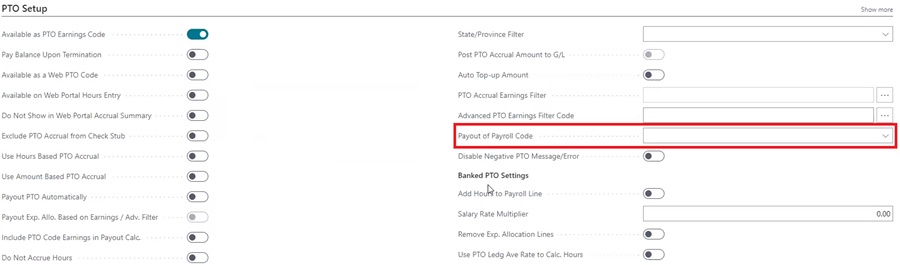
New field in PTO Card ‘Payout of Payroll Code’.
When this code is selected and used in a payroll document, the system will automatically create usage PTO entries for original accrual payroll code during the posting.
Show Banked Hours / Amount Settings
In the ADDITIONAL PAYROLL SETUP > Advanced PTO Setup there is a new check box for ‘Show Banked Hours / Amount Settings’. When set to ‘true’, the banked PTO Setup section will be visible in the Payroll Code Setup Card.

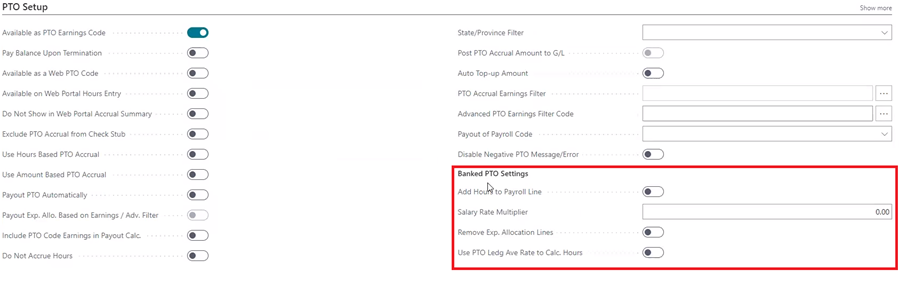
ADD HOURS TO PAYROLL LINE:
When set to true, hours will be added to the payroll line using the employee salary rate multiplied by the multiplier
SALARY RATE MULTIPLIER:
Multiplier that will be used against the employee salary rate in order to calculate the number of hours
REMOVE EXPENSE ALLOCATION LINES:
Will remove the associated expense allocation after adding the hours to the payroll line
USE PTO LEDGER AVERAGE RATE TO CALCULATE HOURS:
Will use the PTO Ledger average rate to calculate the hours from the total amount paid out divided by the average PTO ledger rate. This setting will find the payroll code to filter on in the PTO ledger by finding the PTO accrual code linked to this PTO Payout code
Enable Hours Details G/L Code
In the Additional Payroll Setup > General Tab there is a new ‘Enable Hours Details G/L Code’ check box.

When set to true, if a G/L Account code is loaded into Hours Details or the Expense Allocation lines, it will be used in posting the earnings.
This feature allows you to force the G/L code posting by putting it in the hours details so if you load the G/L code in hours details it will post to whatever G/L account is in hours details.
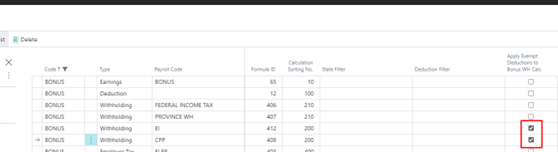
Apply Exempt Deductions to Bonus Withholding Calculation – Canada Only
This is a new checkbox in the Payroll Calculation Formulas. When checked, the tax exempt deductions will be applied to bonus calculations’ applicable earnings.
Remove ‘E’ from NACHA File
This new checkbox is in Additional Payroll Setup > Additional ACH Setup.

Summarize YTD Earnings in Payroll Check
This is a new check box in Payroll Setup > Check Setup

When set to true, the YTD earnings can be summarized into one line at the end of the earnings section in the check stub.
Skip Payroll Lines Without Expense Allocation Lines
New checkbox with ‘Process Procedure Advanced Filter Card’
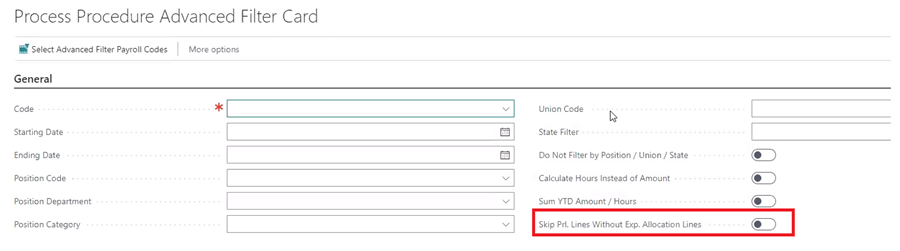
When set to ‘true’, if the payroll lines do not have expense allocation lines behind them, they will be skipped.
Use Bank Account File Creation No.
This is a new checkbox in Additional Payroll Setup > Canadian Setup
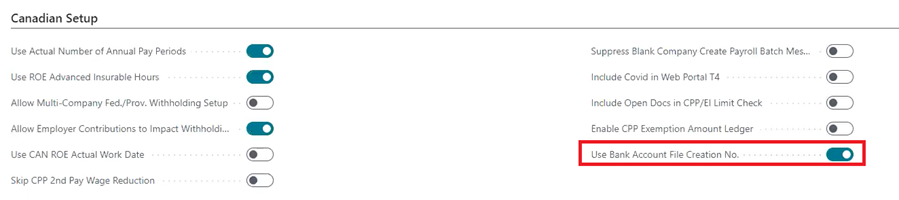
When set to true, the bank account Last E-Pay File Creation Number will be put into the EFT file instead of the EFT File Creation Number from the Payroll Setup Table.
Use Payroll Tax Code
New checkbox can be turned on via Additional Payroll Setup > General Tab
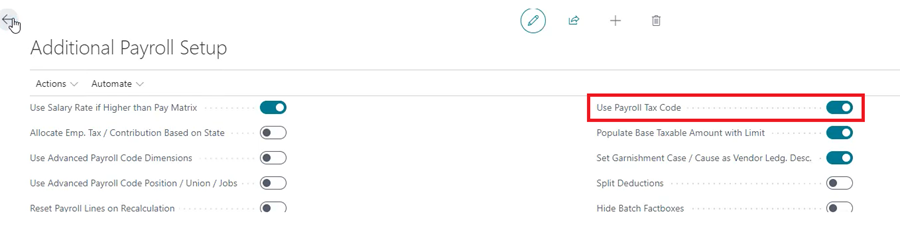
That checkbox will activate a new field in Payroll Code Setup Card called ‘Tax Code’. And then whatever tax code is entered in this field will post through to the payroll ledger.
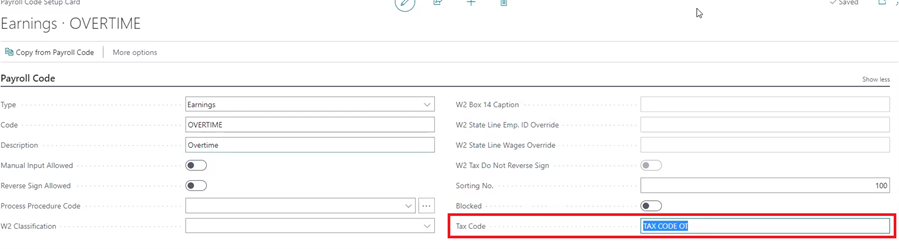
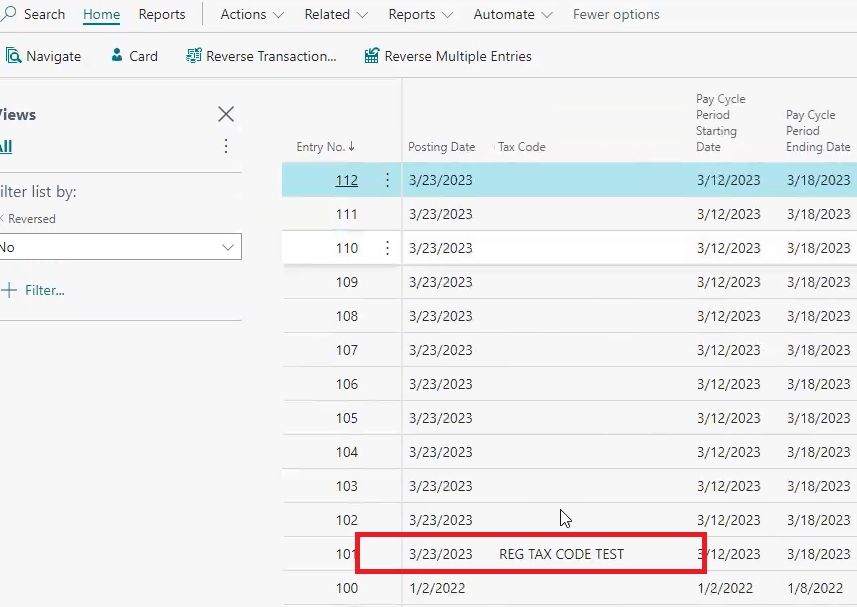
This feature allows codes to be setup and linked to the payroll codes primarily for mapping to the necessary electronic filing codes.
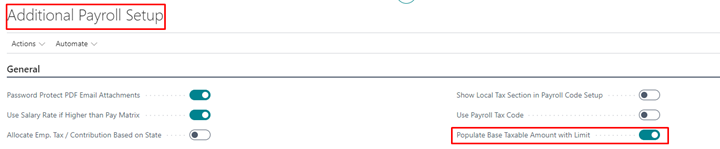
Base Taxable Amount with Limit
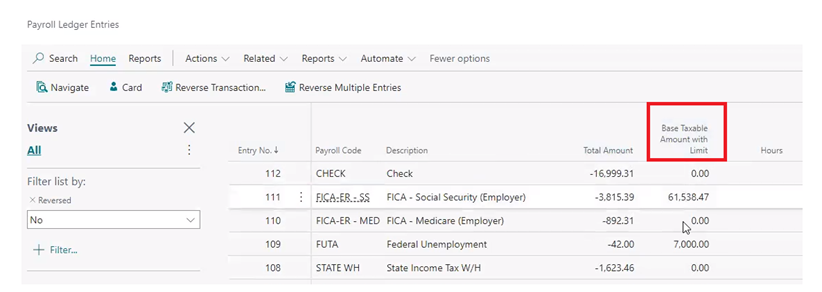
There is a new field in Payroll Ledger Entries called ‘Base Taxable Amount with Limit’. This field will populate automatically when turned on in Addl. Payroll Setup.
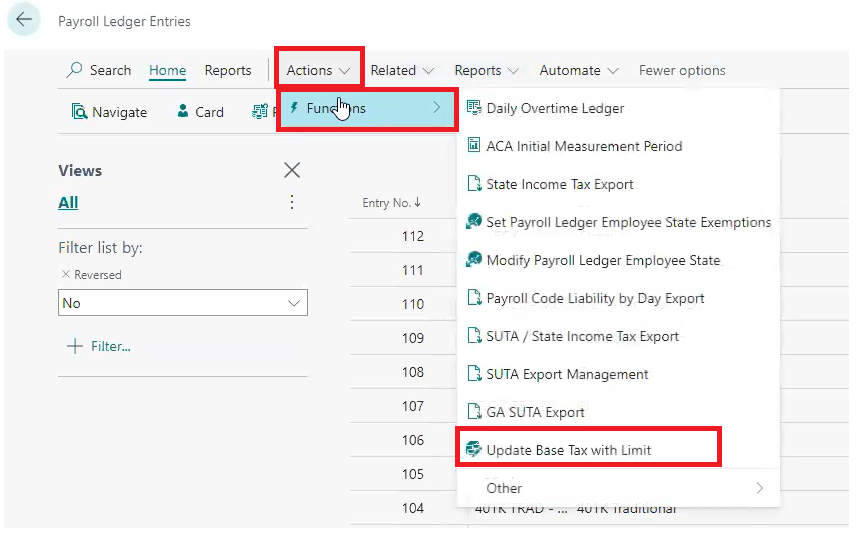
However, if the users wants to populate data in that field from the beginning of the year the user can achieve that by clicking Actions > Functions > Update Base Tax with Limit and the click ‘Update All Records’.
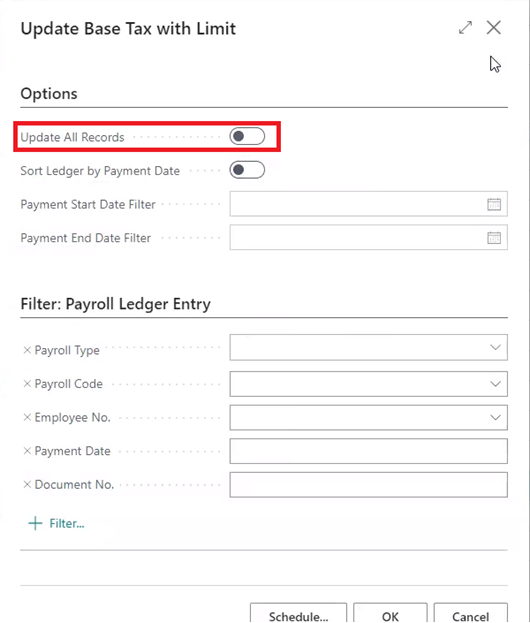
Currently this capability will only work for Social Security but FUTA and SUTA will available in future app releases along with state specific payroll taxes that have limits.
Advanced PTO Earnings Filter Code
New field in PTO Setup of Payroll Code Setup Card called ‘Advanced PTO Earnings Filter Code’
Since the number of hours that goes into the accrual needs to be filtered in some cases this allows the user to pick an advanced filter code to calculate the amount of base PTO hours that should go into the PTO accrual calculation. This is necessary so that the system can filter on hours that are only in a certain state / union / position etc.

Questions / Resources
If you have questions or comments please email support@integrity-data.com.
Last Review: 07/10/2023
Leave A Comment