
Employee Data Validations for Tax Filing Services
Payroll Processing >> Payroll Employees >> Related

Currently, the employee data validation process is not run automatically when tax liabilities are released periodically. Integrity Data recommends that employee data validations be run prior to each periodic release to ensure accurate tax filing data. Missing social security numbers, last names and addresses cause issues with tax filing and cause costly delays and penalties.
The employee validations cover basic tax filing data, such as last name and SSN, and make sure things are populated when they need to be. Once the initial employee validation is run, only updates to employees are validated from that point on.
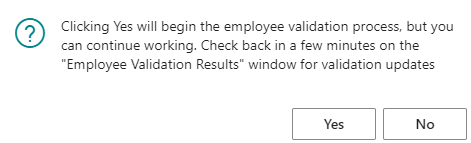
Click “Validate Employee for Tax Filing.” The following prompt will appear. You can navigate away and continue working while the validation takes place. Click ‘Yes’ to continue.
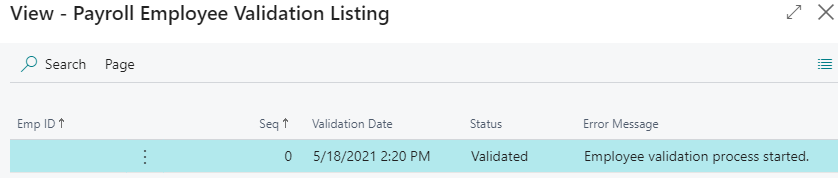
To see the progress of the validation, navigate to “Employee Validate Results.” You’ll see that the validation process has begun
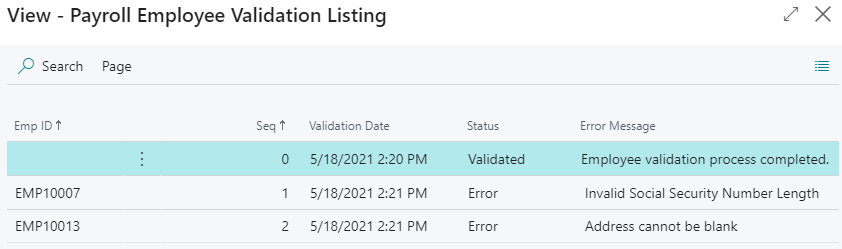
Once completed, you’ll see any errors associated with the data in the error list. Errors are shown here from only the current validation process.
ACA Exports in Payroll Now
Periodic Activities >> ACA Compliance >> Create ACA Export Files
Payroll Now ACA users can export their employees, dependents, and transactions in an acceptable format for import into the ACA Solution. Once you create ACA Export Files, if you want to create the same files again, you have to select “Mark Records as ACA Info Not Sent” to recreate the export files with the same data.
Employees
Using the filter options on the Create ACA Export Files window, select all or a subset of employees to create.
Note: Monthly imports into the ACA Solution are advised to track employment history, and, to ensure accurate 1095-Cs at the end of the year, monthly imports are recommended.
Dependents
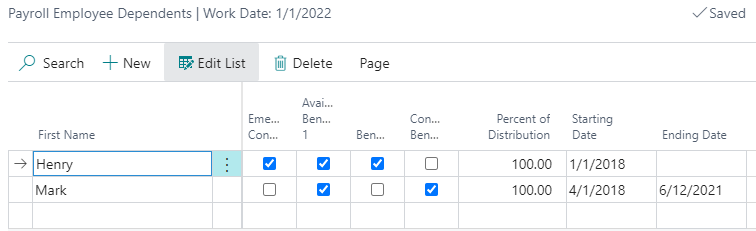
For self-insured ACA customers, dependent coverage should be tracked for their health plans using the “Starting Date” and “Ending Date” fields on the dependent record. For dependent data to be exported successfully, a Benefit Category must be set up in the system.
Transactions
Using the Create ACA Export Files report filters, the user can filter to a subset of payroll codes to include in the ACA export files. We recommend all earnings, deductions, and employer contributions be included in the export.
Creating the ACA Export File
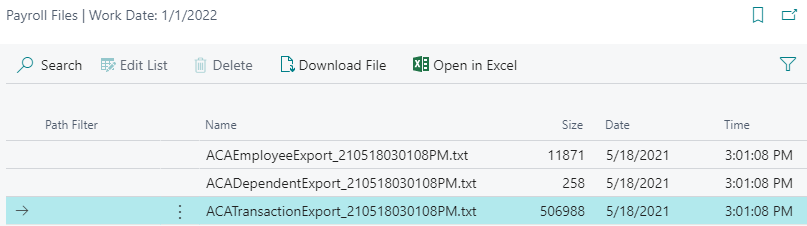
Once you’ve applied the filter criteria on the ACA Export File report window, click the Ok button to create the ACA exports. Next, you’ll be taken to the Payroll Files window. From here, you can download the .txt files for import into the ACA Solution. This window cannot be navigated to, so download all files from the window while you have it open.
Batch and Single Document Gross-Up Calculation
Gross-up calculations can be applied to batches as well as single payroll documents by applying a GROSSUP calculation formula to your earnings in the Payroll Calculation Lines window.
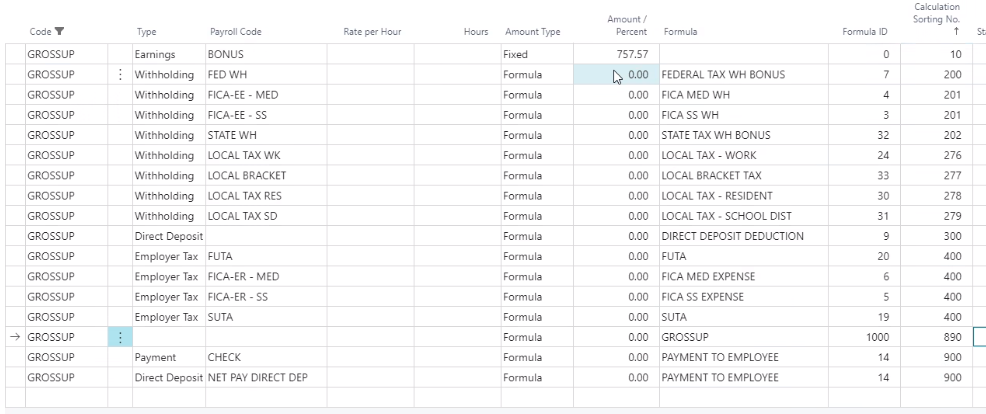
Step 1: Enter the desired net amount of the check-in the Earnings Amount/Percent, shown above on the top line
Step 2: Make sure that the GROSSUP formula is on the Payroll Calculation Lines
Step 3: Make sure the GROSSUP formula has a Calculation Sorting Number after the tax calculations
Step 4: Suggest Lines on the Payroll Document or Batch and you will see the gross-up calculation on the document
Federal 943 Report
Reports >> US Tax Reports >> 943 Report
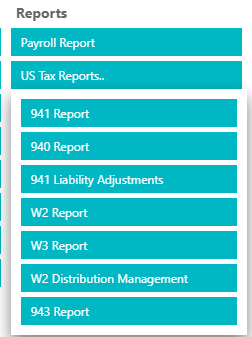
Payroll Now supports agricultural customers with the 943 Report.
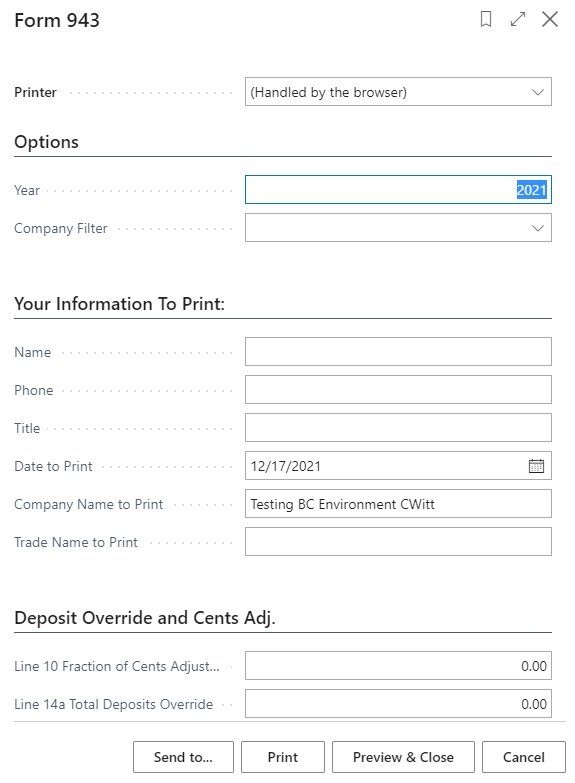
Similar to the 941 Report, the 943 Report Request Window has additional filter criteria and the ability to manually edit specific lines on the form. Once you’re ready to create a report, select the report options at the bottom of the window to create the report.
Leave A Comment