
Use Actual Work Dates, Use Automatic Late Codes
These new Boolean check boxes / switches are in the ‘Additional Payroll Setup Table’ > ‘General Tab’.
These new options can be used independently of each other if needed.

Use Actual Work Dates:
Will check pay cycle period and if the pay cycle period is closed it will make the usage date inside the open pay cycle period and put the actual work date as the date that was originally put in via hours entry. It allows you to automatically track if there was late time.
Use Automatic Late Codes:
Will populate late code if work date was in the past in a pay cycle that was not open.
Late Earnings Code
If ‘Use Automatic Late Codes’ is set to true, the ‘Late Earnings Code’ field will be become available in earnings payroll code setup cards. Here you can link the late earnings code to the necessary earnings code. When populated, if the pay cycle is closed this earnings code will be used when records are populated in Hours Detail.

Actual Work Date Field
When the ‘Use Actual Work Dates’ is set to true, the ‘Actual Work Date’ field becomes available in the ‘Manual Hours Details’ table.

In this screenshot example you can see how the ‘Usage Date’ field auto populates the first available date in the next open pay cycle even the though the ‘Actual Work Date’ is from the prior / closed pay cycle. In the event that the code in the ‘Earnings Code’ field has a ‘Late Earnings Code’ attached to it, then when the earnings code hits the Hours Detail Table, the earnings code will be switched out with the ‘Late Earnings Code’ automatically.

Hide PTO Factbox Amount & Hide PTO Factbox Hours
These new Boolean fields were added to allow users to turn on or turn off the ability to view the PTO FactBox Amounts and PTO FactBox Hours.

Include Open Docs In CPP/EI Limit Check
This new Boolean Field is in the Canadian Setup Tab of the ‘Additional Payroll Setup’ table. When set to true, open payroll document CPP/EI amounts will be included with the Payroll Ledger Entries when checking the limits and the CPP exemption will only be applied to one open document.

Enable CPP Exemption Amount Ledger
When set to true, the CPP Exemption Amount will be tracked in the ledger by employee. Therefore, it can be applied to the multiple open payroll documents at once until it is completely used per pay period.

Payout PTO Automatically

When set to ‘True’, ‘Payroll PTO Automatically’ will become an available Boolean field on the employee PTO card to automatically payout the amount accrued.

Payout Expense Allocation Based On Earnings / Advanced Filter
The ‘Payout PTO Automatically’ Boolean mentioned above must be set to ‘True’ to be able to activate the ‘Payroll Exp. All. Based on Earnings / Adv. Filter’ boolean
When set to true, the expense allocation lines behind the PTO payout payroll code will be built based on the earnings filter or the advanced filter that calculates the earnings applicable in the accrual.

Sets the expense allocation lines behind the PTO payout to the ‘PTO Accrual Earnings Filter’ or ‘Advanced Filter’ that was used in the calculation of the PTO amount.

Advanced PTO Earnings Filter Code
When populated, the earnings that apply to the PTO code will be set from the advanced filter code populated in this field. The advanced filter can also be used to set additional filters on positions, custom dimensions, etc.

Here is a screenshot example of an Advanced PTO Filter. You can set active payroll codes for the filter along with position codes, union codes etc.

Do Not Accrue Hours
If the PTO Earnings code is an amount-based accrual, if this is set to ‘True’ the calculation will skip the hours accrual and only accrue dollars.

Include Pto Code Earnings In Payout Calc
If set to true, the payout percentage will calculate including the PTO payout in the current payroll document of this payroll code.

Enable Unlimited Report Groups
When set to ‘True’, this new Boolean Field in the Payroll Report Layouts allows the user to make as many report groups as is needed. When activated, the report will not be constrained to just 8 groupings and the type of grouping can be specified (Dollars, Hours and Quantity).

Copy Web Portal Login / Password To New Company
When set to ‘True’, the employee self – service portal logins and passwords will be copied to the new company when a company is copied. In most cases, you would not want the logins and passwords to be copied from the live company to a test company.

New Process Procedure
These new process procedures are found at the bottom of ‘Option 2’ menu dropdown.
Payroll Code Amount Deduction Card Date Filter
This will use the date filter on the employee deduction card when it goes to get the payroll code amount. This will get payroll code amount from the ledger using the date filter from the deduction card. This allows you to control what balance is brought in.

Payroll Code Amount On Open Documents
Will bring in the payroll code amount on the other open documents for the same employee number at the time.
Get Custom Limit
This allows the user to find the Custom Deduction Limit from the Custom Deduction Limits table and bring it into a process procedure.
Apply Deduction / Employee Contribution Custom Limit
This procedure allows you to test against the custom limits. If you process procedure calculation is going over the limit, this procedure will reduce the deduction down to the limit.
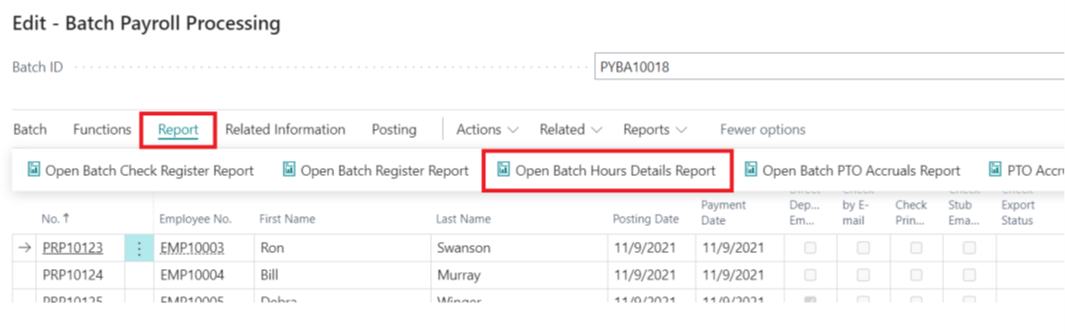
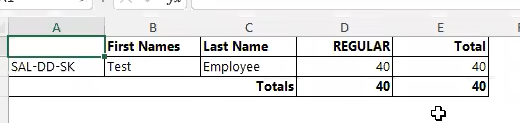
Open Batch Hours Details Report
This report is showing the hours in the batch.
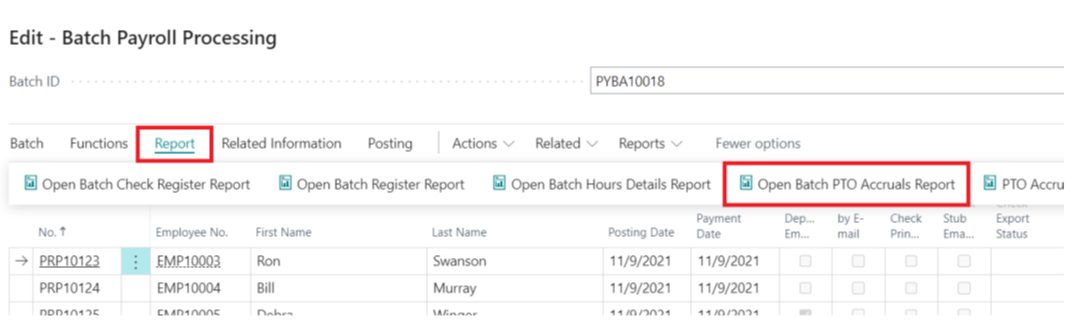
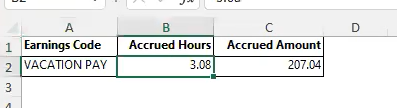
Open Batch PTO Accruals Report
This report will show any PTO that’s accrued in the batch.
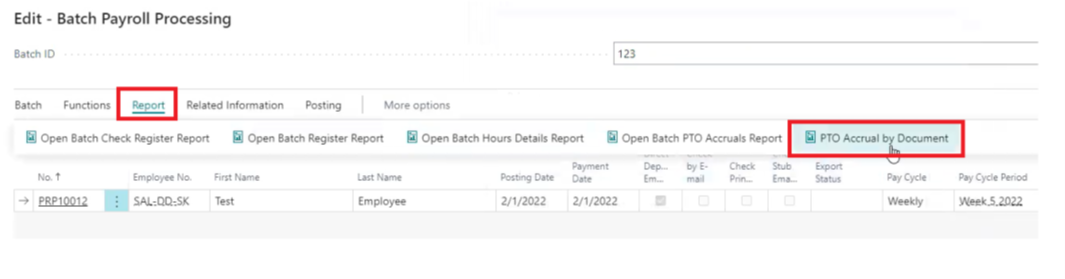
PTO Accrual By Document
This report will not be available unless the ‘Allow Multiple Open Docs on the Same Employee’ feature is turned on. Therefore, this report will not be available to most users. This report will show the Batch ID, Payroll Document #, Employee #, Earnings Code and PTO Accrual Amount.

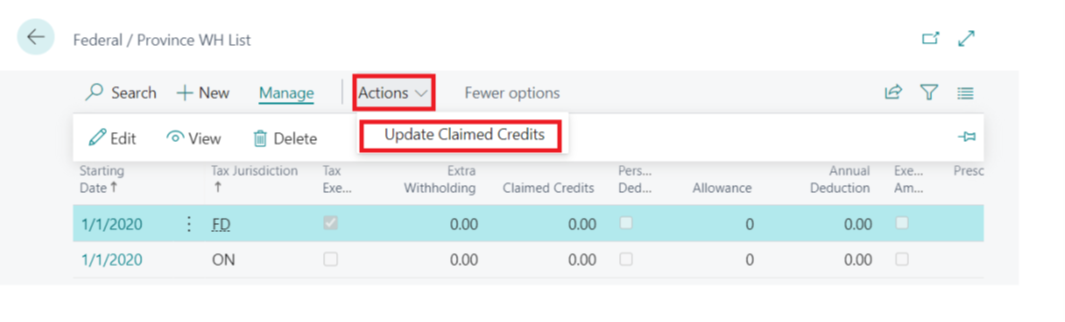
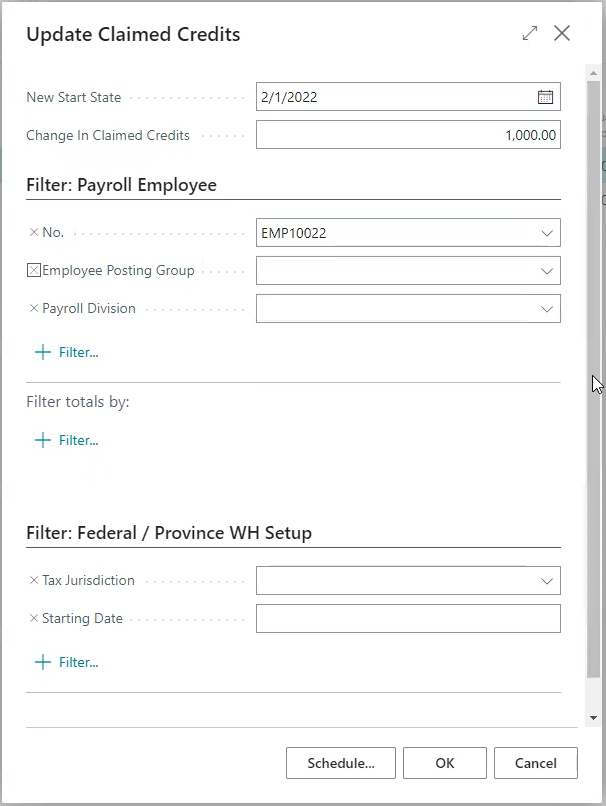
Update Claimed Credits (Canadian)
If the employee / employees have a Claimed Credit amount other than ‘0’, the ‘Update Claimed Credit’ allows the user to quickly update the claimed credit amount by effective date and tax jurisdiction. If the employee / employees currently have a claimed credit of zero, then no updates will be applied by this feature since the tax tables are driving all claimed credit amounts for employees with zero.
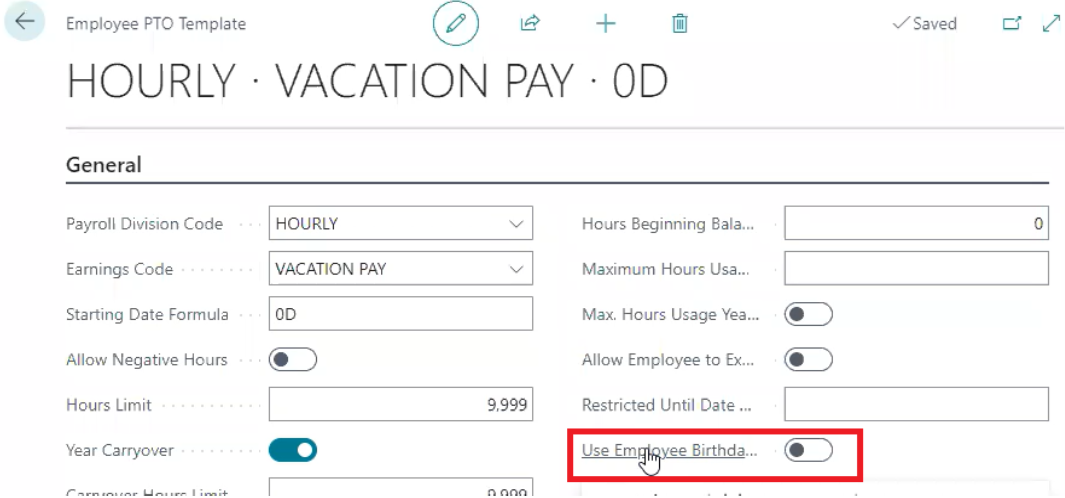
Use Employee Birthday As Start / Anniversary Date
When set to ‘True’, the employee’s birthday will be used for both the start date and anniversary date in the PTO Card.
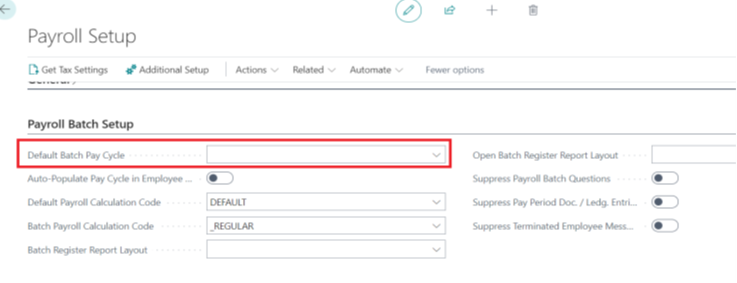
Default Batch Pay Cycle
If there is a default pay cycle and this Boolean is set to ‘True’ then its going to populate the pay cycle in the salary card automatically with the Default Batch Pay Cycle.
W2 Excel View
You can access W2 Excel views using the report layouts available in Payroll Now.
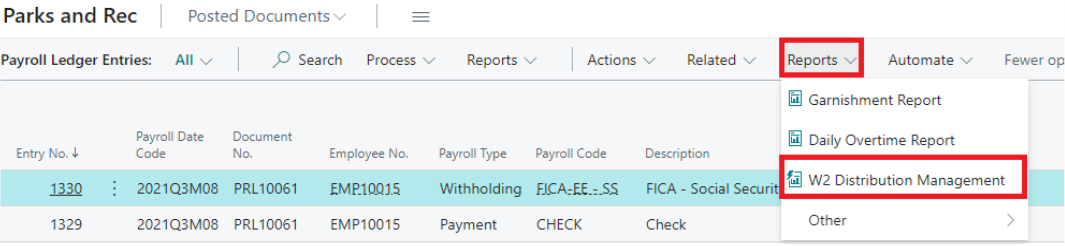
For W2s go to ‘Payroll Ledger Entries’ > Reports > W2 Distribution Management.
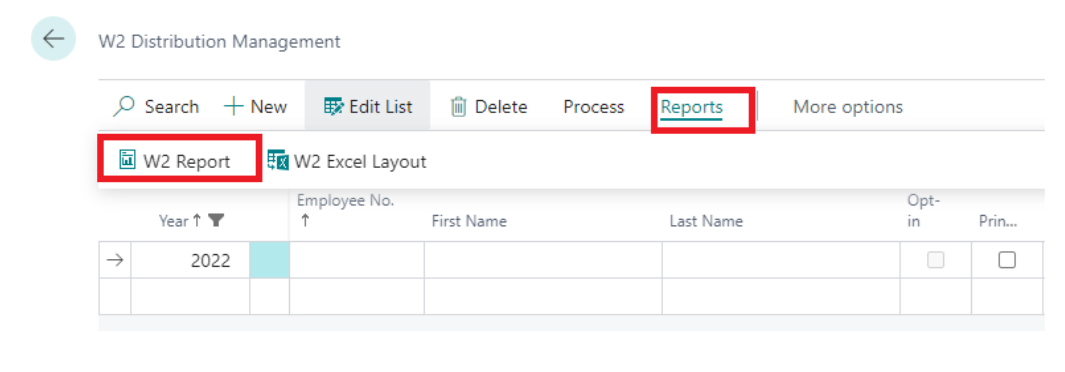
From there click ‘Reports’ > W2 Report.
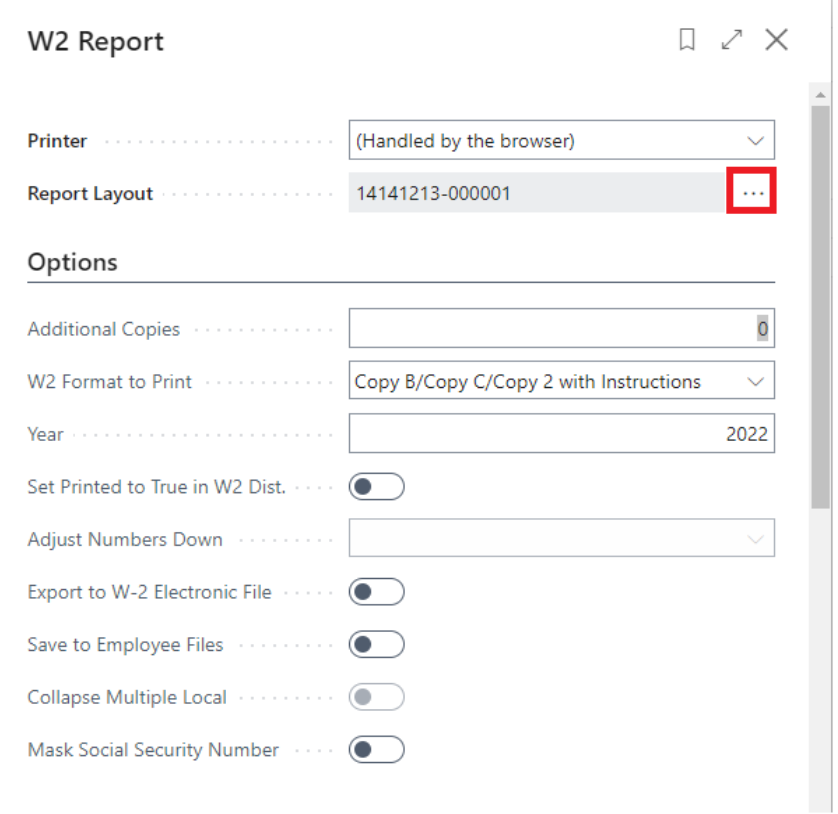
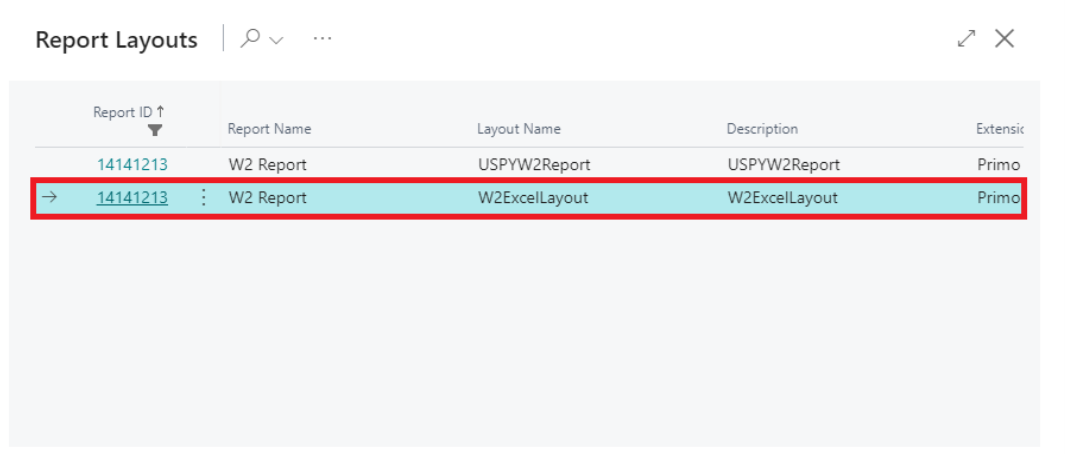
When in the We Report screen, select the ellipsis button to the right of ‘Report Layout.’
Select W2ExcelLayout report layout.
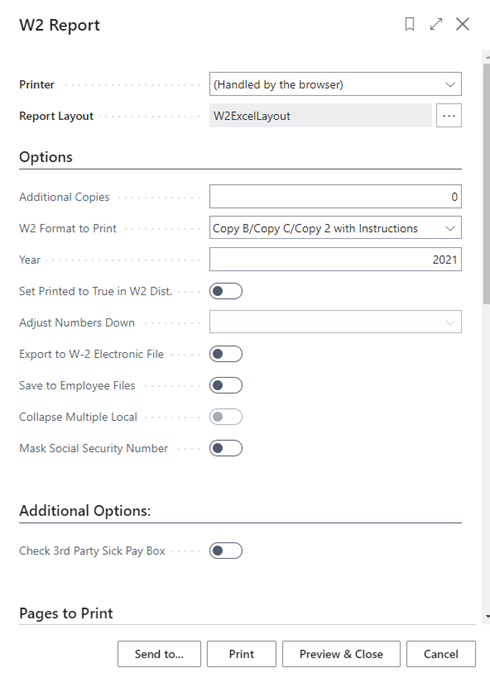
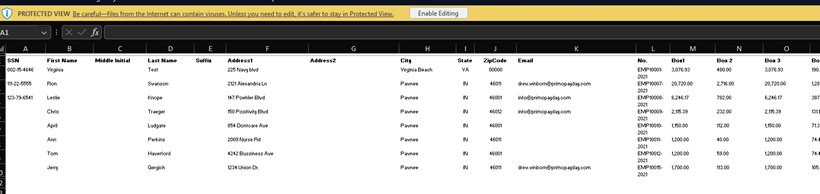
Then run your W2report with ‘Send To’ > ‘Microsoft Excel Document (data and layout).
Post Zero Tax Lines
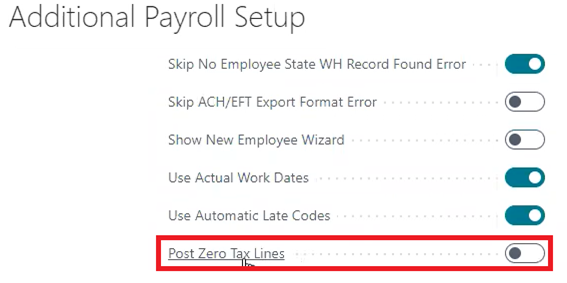
When set to true, all withholdings and employer taxes will be posted to the payroll ledger even if the tax amount is zero.
It will calculate payroll lines and post them to the payroll ledger even if there is no tax necessary due to tax exemptions, surpassing wage limit thresholds etc.
This feature is helpful for managing Base Taxable Amount calculations.
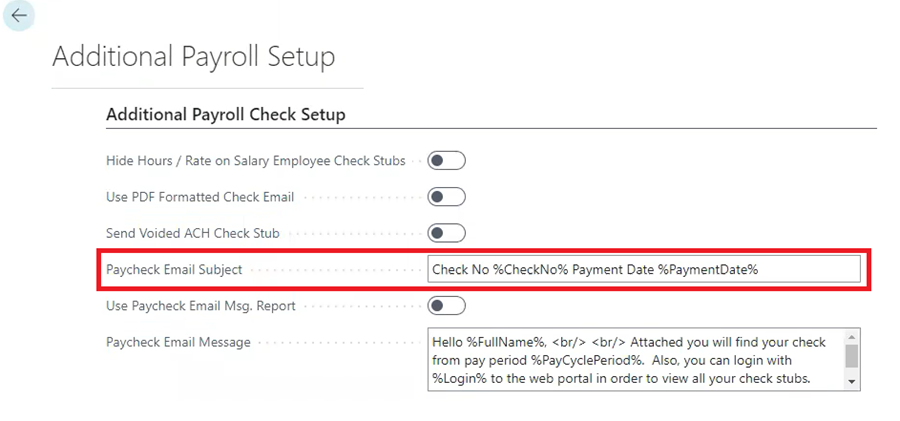
Paycheck Email Subject
Paycheck Email Subject allows the user to insert captions with variables (please notice the ‘%’ sign surrounding each caption) to pull in the actual payroll data into the Paycheck Email Subject if desired.
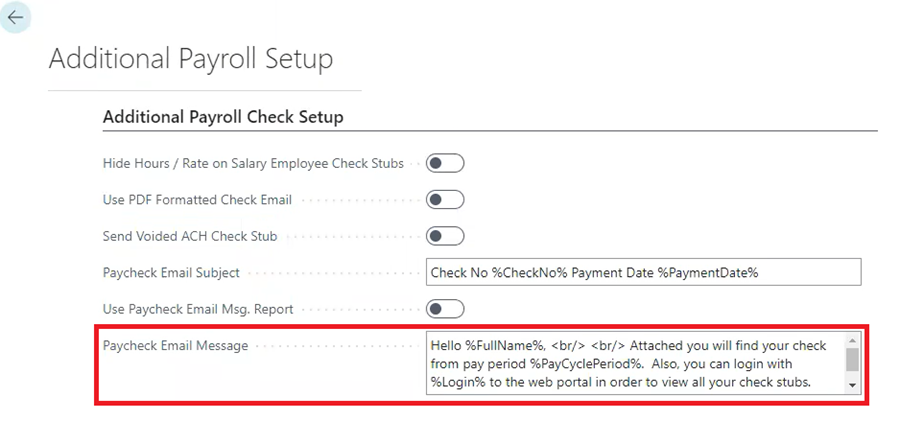
Paycheck Email Message
Paycheck Email Message allows the user to insert captions with variables (please notice the ‘%’ sign surrounding each caption) to pull in the actual payroll data into the Paycheck Email Message if desired.
Variable Commands For Paycheck Email Subject And Paycheck Email Message
‘%First%’, PayrollEmployee.”First Name”
‘%Last%’, PayrollEmployee.”Last Name”
‘%FullName%’, PayrollEmployee.”Full Name”
‘%Email%’, PayrollEmployee.”E-Mail”
‘%Login%’, PayrollEmployee.Login
‘%PaymentDate%’, Format “Payment Date”, 0, ‘<Month,2>-<Day,2>-<Year4>’
‘%PayCyclePeriod%’, “Pay Cycle Period”
‘%CheckName%’, CheckName
‘%CheckNo%’, “Check No.”
‘%CompanyName%’, CompanyInformation.Name
‘%CompanyPhone%’, CompanyInformation.”Phone No.”
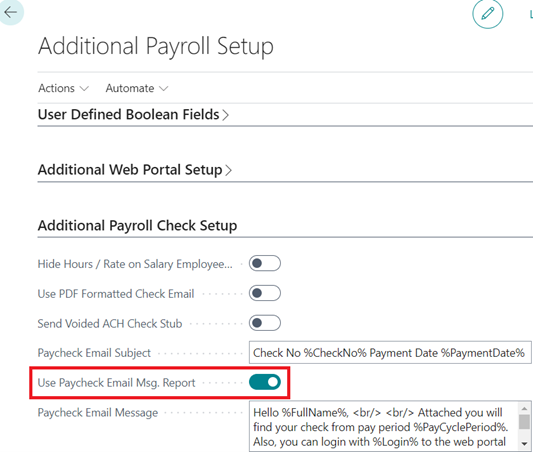
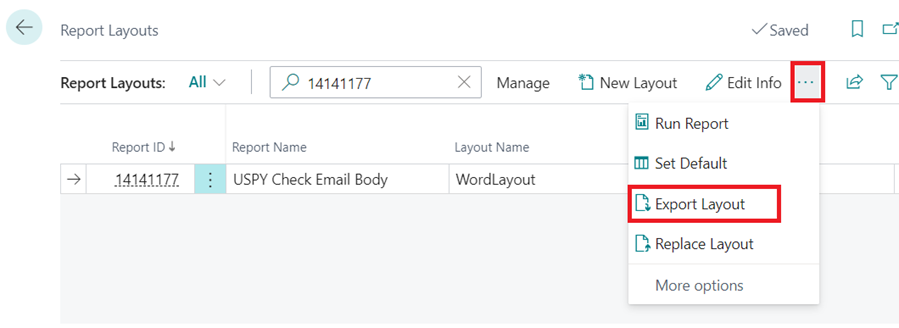
Use Paycheck Email Msg Report
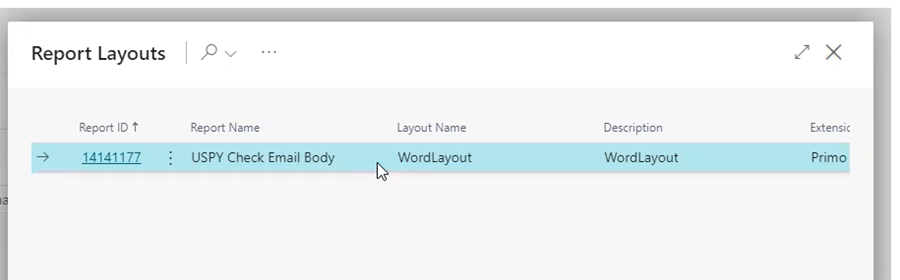
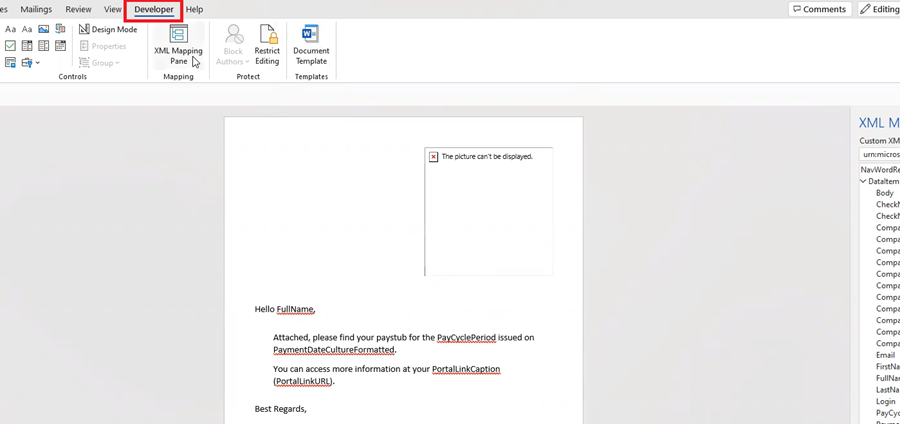
When set to true, if the user wants to change the email body and make it whatever you want it to be, you can export the layout in a word file and then modify it. Please note you will need to make sure to add / open the ‘Developer’ Tab to access the ‘XML Mapping’ pane in your Word Ribbon to be able to modify the word file.
SUTA/EFW2 Company Override
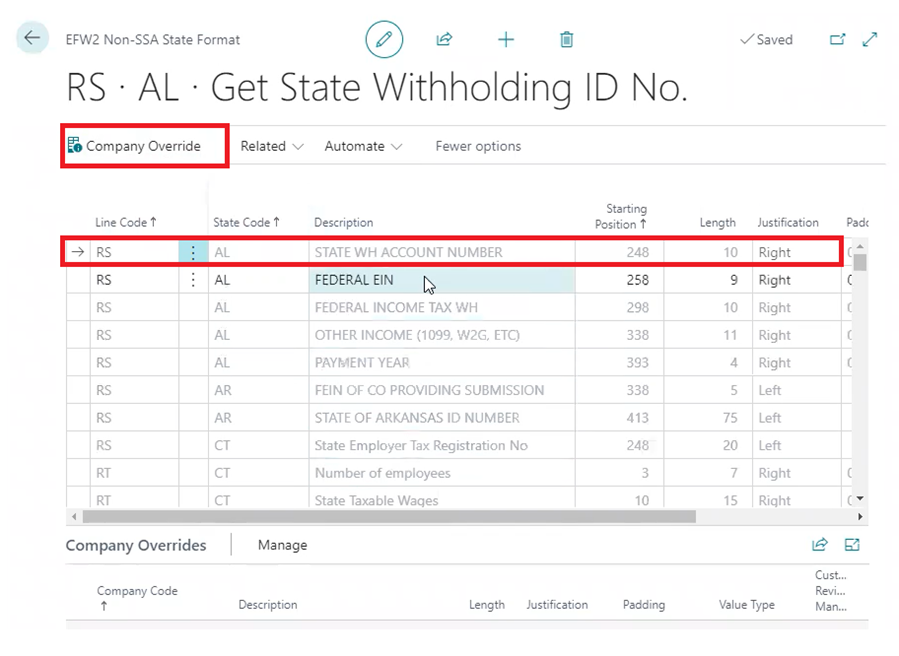
Note: You must have multi-company turned onto access this feature.
The purpose of this new ‘Company Override’ is to allow users to add a company override on certain fields in the setups for SUTA and W2 exports. This feature now provides the necessary functionality to replace a few data points in a SUTA or W2 export while allowing other data points in the export to remain as is. Instead of having to setup all lines for every company, you are able to override only the fields that change by company.
Company Code Added As ‘Subtotal’ Option In Payroll Reports
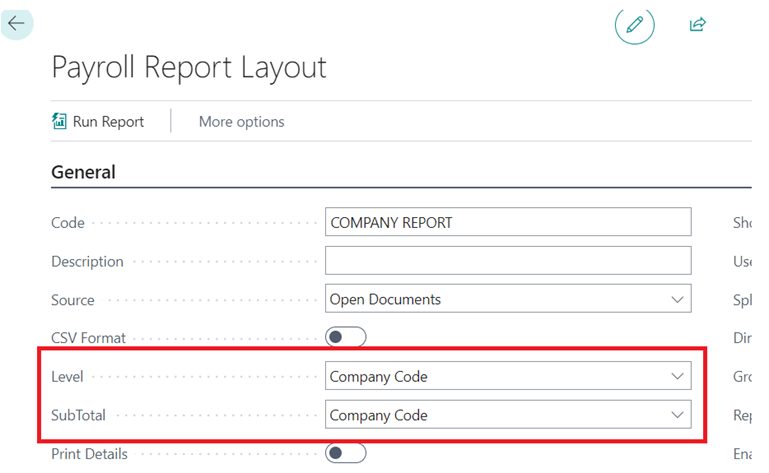
When creating payroll report layouts you can now select ‘Company Code’ as your report ‘level’ or ‘subtotal’ so that you can run everything and then have the report grouped by Company.
Auto Local Tax Updates – Multiple Local Taxes
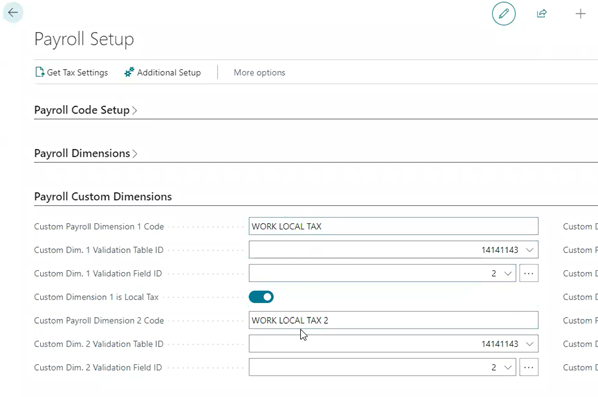
The feature allows custom payroll dimensions to be set as local tax codes.
You can now have a work locality that is not the same for the entire pay period.
Below are screenshots of the custom payroll dimension in the payroll setup table and then a view of how those custom payroll dimensions look in the hours detail table to track the variance in the local tax settings for the cycle.
Questions / Resources
If you have questions or comments please email support@integrity-data.com.
Last Review: 12/23/2022
Leave A Comment