
Overview
The Payroll Expense Accrual functionality is designed to help users allocate payroll expenses to the appropriate financial period when a pay cycle spans multiple months. Without this feature, payroll expenses are typically posted on the payroll posting date, which can lead to misaligned financial reporting.
By leveraging this feature, users can ensure that payroll expenses are distributed accurately across the correct financial periods, improving financial reporting accuracy and compliance.
Why Use Payroll Expense Accrual?
In many organizations, payroll cycles do not align perfectly with calendar months. For example, if a bi-weekly payroll cycle includes 12 days in the previous month and 2 days in the current month, standard payroll processing would allocate the entire expense to the final payroll date, leading to incorrect financial period allocations.
With the Payroll Expense Accrual extension, users can automatically distribute expenses based on either:
- Equal Allocation (Days-based Splitting) – Spreading payroll expenses evenly across the selected period.
- Percentage-based Allocation – Allocating expenses to the previous period based on a set percentage.
These accruals are not automatically posted but are loaded into the General Journal in Dynamics 365 Business Central, where users can review and finalize entries before posting.
How to Access the Payroll Expense Accrual Extension
To access the Payroll Expense Accrual screen in Payroll NOW:
- Navigate to the Full Payroll Menu.
- Select Financial Periodic Activities under Periodic Activities.
- Select Accrue Payroll Expenses into Financial Period.
This will open the Payroll Expense Accrual screen, where users can configure expense accrual settings.
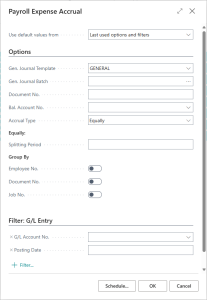
Configuring Payroll Expense Accrual in Business Central
General Settings
- Use Default Values From – Choose whether to use last used options and filters or configure new settings.
- Journal Template – Specifies the General Journal where accrued payroll expenses will be loaded.
- Journal Batch – Selects a batch for journal entries.
- Document No. – A unique identifier for the accrual transaction.
- Account No. – The balance sheet accrual account used to temporarily hold payroll expense adjustments before they are posted to the correct period.
Accrual Type Options
- Equal Allocation (By Splitting Period): Distributes payroll expenses evenly across a defined period.
- Splitting Period – Select the start date for distributing expenses.
- Percentage-based Allocation (By Prior Period Percentage): Allows users to apply a percentage of payroll expense to the previous period.
- Current Period Posting Date – Select the posting date for the payroll in the current period.
- Previous Period Posting Date – Select the last posting date for the previous period.
- Accrual to Previous Period (%) – Define the percentage of payroll expenses to be assigned to the prior period.
Grouping Options
Users can group accrued expenses based on:
- Employee No. – Accruals can be grouped by employee.
- Document No. – Expenses can be categorized by payroll document.
- Job No. – Payroll expenses can be grouped by job.
Enable the toggle switches to activate grouping based on these categories.
Filtering General Ledger (G/L) Entries
To refine which payroll expenses are included in the accrual calculation, apply filters:
- G/L Account No. – Select the salary and payroll tax expense accounts to be accrued.
- Posting Date – Define which payroll transactions should be included in the accrual process.
Example Use Cases
Scenario 1: Equally Splitting Payroll Across Two Months
A company processes payroll for the period January 25 – February 7. The finance team wants to allocate 7 days of payroll to January and the remaining 7 days to February.
Steps to Accrue Payroll Equally:
- Open the Payroll Expense Accrual screen.
- Select Accrual Type: Equally.
- Set the Splitting Period to January 25.
- Choose the correct G/L Account No. (e.g., Salaries & Payroll Taxes).
- Assign the Bal. Account No. for accrual adjustments.
- Click OK to generate the journal entry.
- Review the journal entry in the General Journal before posting.
Scenario 2: Allocating a Percentage of Payroll to the Previous Month
A company wants to allocate 40% of payroll expenses to the previous period and 60% to the current period based on working days in each month.
Steps to Accrue Payroll by Percentage:
- Open the Payroll Expense Accrual screen.
- Select Accrual Type: By Percentage.
- Set Current Period Posting Date to February 7.
- Set Previous Period Posting Date to January 31.
- Enter 40% in the Accrual to Previous Period (%) field.
- Click OK to create the journal entry.
- Review and post the entry in the General Journal.
Finalizing Accrual Entries in Dynamics 365 Business Central
Once the journal entry is generated, follow these steps to review and post:
- Navigate to General Journal in Dynamics 365 Business Central.
- Locate the system-generated accrual transactions.
- Review all entries for accuracy.
- Post the journal entries to apply the payroll expense adjustments.
Key Benefits of Using Payroll Expense Accrual in Business Central
✅ Ensures accurate financial reporting when payroll spans multiple months.
✅ Supports two allocation methods: Equal allocation and percentage-based distribution.
✅ Provides grouping options to categorize expenses by employee, document, or job.
✅ Seamlessly integrates with the General Journal in Dynamics 365 Business Central for final review and posting.
Questions / Resources
If you have questions or comments please email support@integrity-data.com.
Last Review: 2/21/2025
Leave A Comment