
KB 15-010
Creating Pay Cycles:
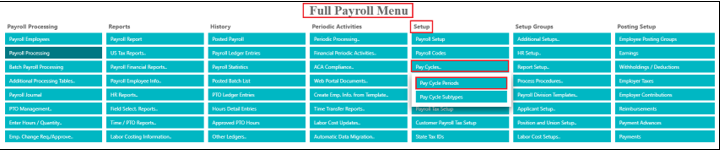
- Go to: Full Payroll Menu
- Under: Setup
- Click: Pay Cycles
- Click: Pay Cycle Periods
- Click: Create Pay Cycle Periods

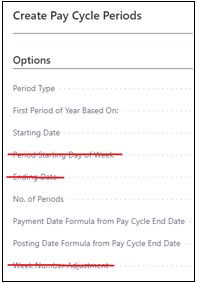
- Period Type = choose pay frequency
- First Period of Year Based On: = choose “Payment Date”
- Starting Date = period begin date
- No. of Periods = number of weeks to create calendar (usually 2 years-worth)
— 104 for Weekly
— 52 for Bi-Weekly
— 48 for Semi-Monthly
— 24 for Monthly - Payment Date Formula from Pay Cycle End Date = number of days after period end date
— 6D (Ex. Period end date is Saturday; pay date is Friday)
— 5D (Ex. Period end date is Saturday; pay date is Thursday)
— -5D (Ex. Monthly payroll paying for entire month, but pay date is the 25th of the same month)
— Etc. - Posting Date Formula from Pay Cycle End Date = number of days after period end date
— 6D (Ex. period end date is Saturday; posting date is Friday)
— 5D (Ex. period end date is Saturday; posting date is Thursday)
— -5D (Ex. Monthly payroll paying for entire month, but posting date is the 25th of the same month)
— Etc. - Click: OK
Update/Correct Dates in a Pay Cycle:
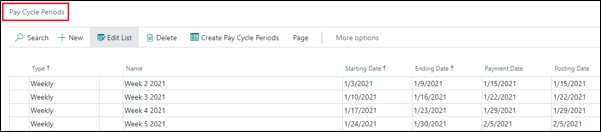
- From within the Pay Cycle Periods screen
— Click in the appropriate field
— Update the info
Questions / Resources
If you have questions or comments please email Support@integrity-data.com.
If you would like to search for information and resources for Integrity Data products check out the following sites:
- Knowledge Base: https://www.integrity-data.com/knowledge-base/
- Videos: https://www.integrity-data.com/video-library
Last Review: 6/1/2021 – Revision: 0.0
Applies To: Payroll Now
Keywords: Pay, Cycles
Categories: Payroll NOW
Leave A Comment