
KB 15-009
General Setup:
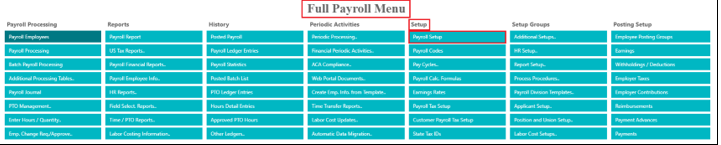
- Go to Full Payroll Menu
- Under: Setup, Click On: Payroll Setup
- In the section “General”:
- Click On, Allow Manual Holidays = ON

Update “_REGULAR” Payroll Calc Formula:
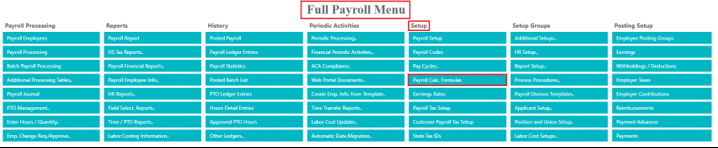
- Go To Full Payroll Menu
- Under: Setup, Click: Payroll Calc Formulas
- Select: “_REGULAR”
- Click: Setup
- Click: Lines
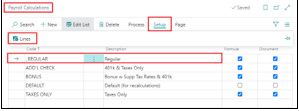
- Make sure you have a line for HOLIDAY as follows:

Create the Holiday Calendar:
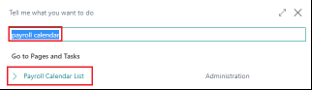
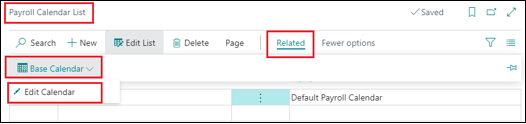
- In Business Central, click on the search icon in the top-right corner
- Search for “Payroll Calendar”
- Click on the link for “Payroll Calendar List”
- Click: Related
- Click: Base Calendar
- Click: Edit Calendar
Add next year’s company-observed holidays
- Recurring System = Special Day
- Date =
- Day = (this will automatically populate based on the date that’s entered)
- Description = enter description of the holiday
- Nonworking = checked
- Nonworking Hours = 8

Questions / Resources
If you have questions or comments please email Support@integrity-data.com.
If you would like to search for information and resources for Integrity Data products check out the following sites:
- Knowledge Base: https://www.integrity-data.com/knowledge-base/
- Videos: https://www.integrity-data.com/video-library
Last Review: 6/1/2021 – Revision: 0.0
Applies To: Payroll Now
Keywords: Holiday, Calendar
Categories: Payroll NOW
Leave A Comment